How to Connect MCP Servers
An MCP server gives agents tools from another system: Outlook, Teams, GitHub, HubSpot, a ticket system. Add the server to the tenant once, then mount it on each agent that should use it. Users sign in to it themselves, so the agent acts with each user's own rights.
1. Prepare the server
Most hosted servers need an OAuth app registered on the provider's side, with the platform's callback URL as redirect URI, see The Platform Callback URL. The provider guides give the exact steps:
- Microsoft 365 (mail, calendar, Teams, OneDrive, SharePoint)
- GitHub, Google Workspace, Slack, Atlassian, HubSpot
2. Add the server to the tenant
Open Tenants → <tenant>, click the pencil on the MCP Servers card, and click Add MCP server. Every field is described in Adding a Server to the Tenant. Click Save Changes; secrets go to the tenant's secrets.
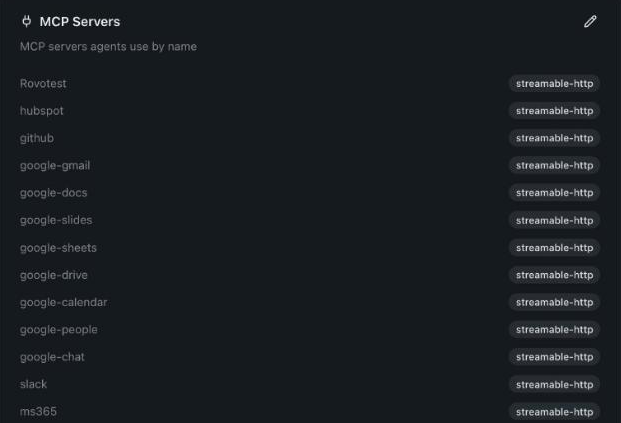
You can also add a server from the agent editor: Capabilities → MCP Tools → New MCP server… fills the same fields and mounts the server on that agent when you save the agent.
3. Mount it on an agent
Open the agent, click Edit Agent, and pick the server under Capabilities → MCP Tools → Mount a server…, see Mounting a Server on an Agent. Set when its tools ask first, see Requiring approval for actions, and click Save Changes.
The server's tools list in the editor once someone has connected to it. Until then you can switch the server on or off and set its policies, but not single tools.
An agent that still defines a server inside its own configuration shows it under Inline servers. Move to MCP Servers turns it into a tenant server, mounted on the agent under the same name.
What users see
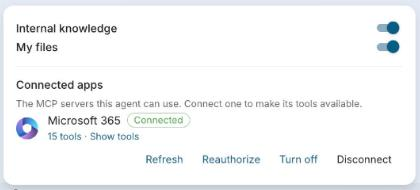
In the chat, Connected apps lists the agent's servers. Each user clicks Connect and signs in once; the agent also offers the sign-in link when it first needs the server. Users can set each tool to Always allow, Ask first or Off there.
Pitfalls
- An Authorization header makes every user act as the token's account. Use OAuth when users must only see their own data.
- Connections are kept per server name, and changing the sign-in settings disconnects everyone. Renaming a server or editing its sign-in fields makes every user sign in again.
- The OAuth redirect URI registered at the provider must match the platform callback URL exactly, trailing slash included.
- Who may use a server at all is decided by access rules on
mcp:<server>; the server's Who may use it edits them, see Rules.
The configuration fields and the agent's MCP settings are described in How to Use MCP Tools.