Chatting with Agents
Ask an agent a question in the Research Navigator, give it documents and images to work with, and follow how it answers.
Start a Chat
Open Chat in the sidebar and click Start New Chat. Start Incognito Chat opens a chat that is not saved to your history.
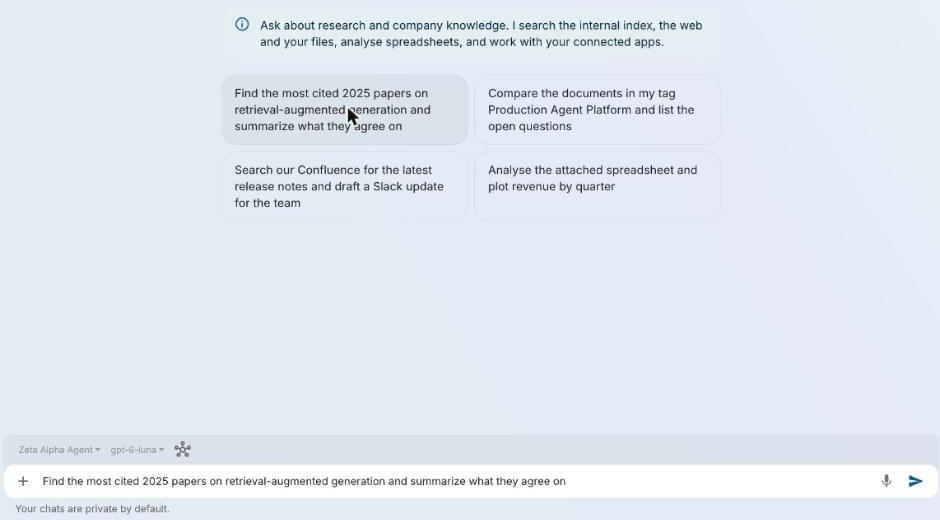
The agent's name sits above the message box. Click it to pick another agent, or New Agent to create your own. Switching agents in a running conversation starts a new one.
Some agents offer prompt suggestions under the greeting. Click one to send it.
Write a Message
Type in the message box and press Enter to send; Shift+Enter adds a new line. The microphone button dictates.
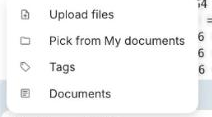
The + button adds content to the message:
| Item | What it adds |
|---|---|
| Upload files | Files from your computer. They are saved to My documents; you can send once they are ready. |
| Pick from My documents | Documents you already uploaded. |
| Tags | The documents of the tags you choose: the agent works within them. |
| Documents | Documents you find with a search in your organization's knowledge. |
You can also drop files anywhere on the page, or paste a screenshot. A message takes up to 10 images (PNG, JPEG, GIF or WebP, each under 10 MB).

While the Agent Works
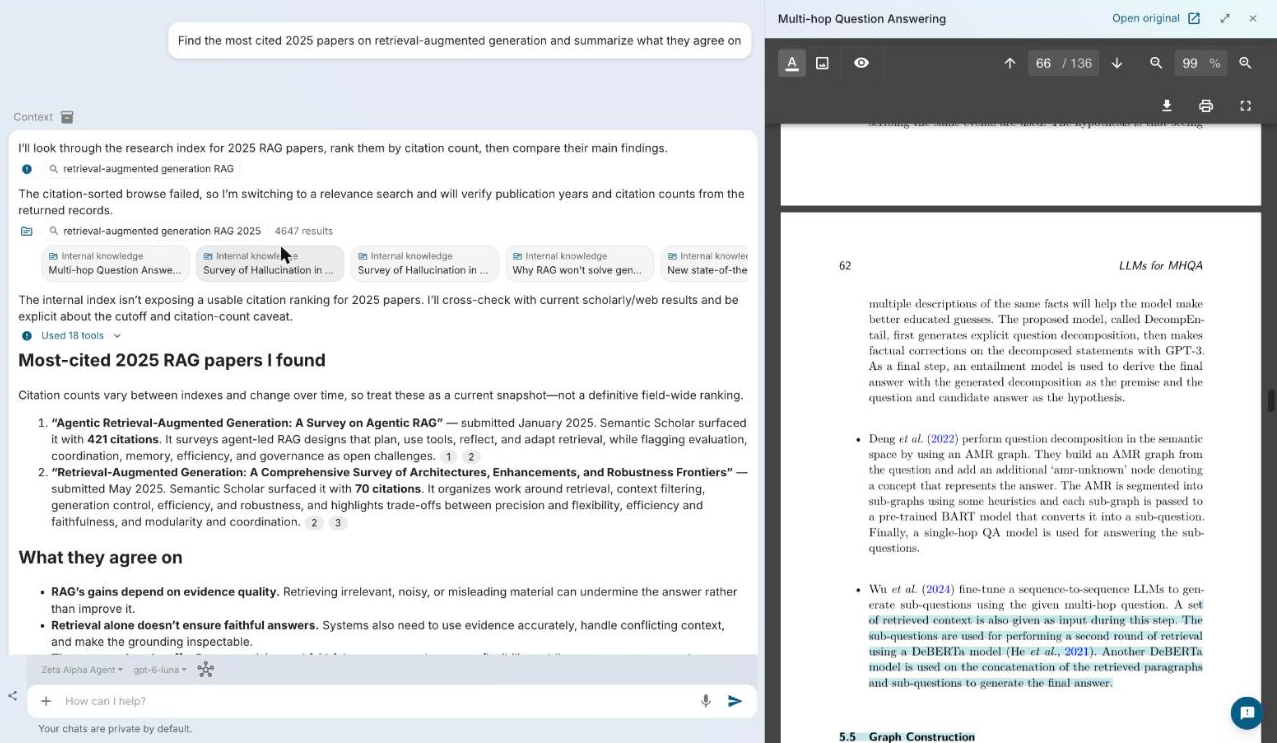
The agent's steps appear as it goes: searches, the documents it read, and the apps it used. A run of steps folds into one line; click it to see each step.
You can keep typing while it works: the message box reads Add to the running answer…. A message you send shows as Queued above the box. The agent reads it before its next step and continues with it; otherwise it starts your next turn when the answer ends.
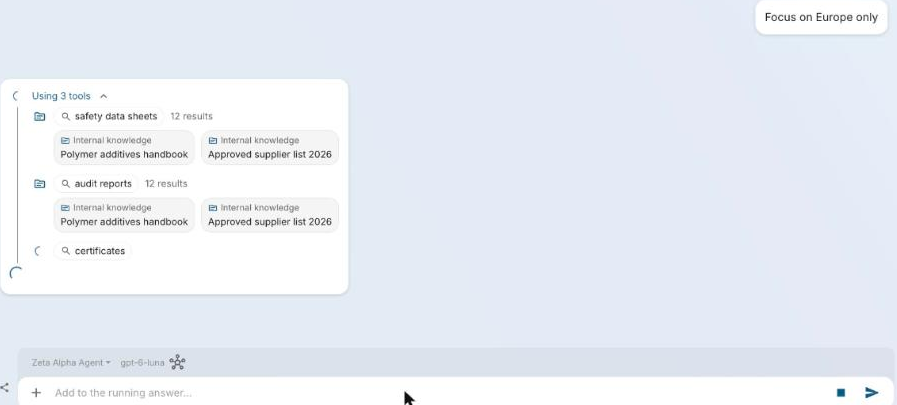
The square button stops the answer. A stopped answer shows Retry to continue it.
When the agent needs your approval before it acts, it shows an approval card, see Approving actions.
Read the Answer
- Citations: numbered chips link to the documents the answer used. Depending on your organization's settings, a document opens in a side panel next to the chat.
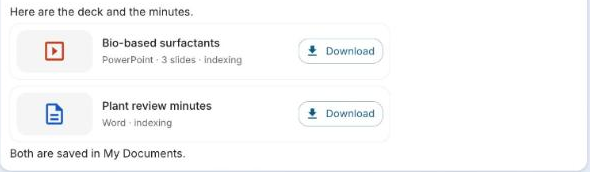
- Files: a presentation or Word document the agent creates shows as a card with Open and Download. It is also saved to My documents.
- Images, charts and 3D molecules render in the answer.
Act on Messages
| Action | Where |
|---|---|
| Copy | Any message |
| Edit | Your messages: change one and click Save and send; the conversation continues from there and later turns are replaced |
| Regenerate | The latest answer |
| Save as note, Export to PDF, Export to Microsoft Word | More actions on an answer |
Your organization decides whether Edit, Regenerate and the model name under each answer are shown.

Messages You May See
| Message | What to do |
|---|---|
| This request was blocked by your organization's content safety policy. | Rephrase the request. |
| Token rate limit reached for this agent. Please wait a moment and retry. | Wait, then click Retry. |
| An answer wasn't received. Please retry to send your message again. | Click Retry. |
| You don't have access to this agent. | Ask your administrator for access, or pick another agent. |

Your Conversations
The sidebar lists your conversations under Today, Yesterday, Previous 7 days and Older. A dot marks a conversation that is still answering or has an unread answer. From a conversation's menu you can rename or delete it.
A conversation that was answering when you closed the tab picks up where it is when you open it again. Your chats are private; the share button next to the message box shares one so others can read it.