How to Create and Edit Agents
An agent is a model, a set of capabilities (tools, skills, memory, MCP servers) and the people it is shared with. Its display configurations decide how it appears in the Navigator. Create one per job your users need done, for example a research assistant or a meeting summarizer.
Create an agent
-
Open Tenants → <tenant>. In Agent & LLM Overview, click Create Agent.
-
Fill in the agent:
Field What to enter Bot Identifier A unique name, for example research-assistant. It cannot change after creation.LLM Configuration The model the agent answers with, see Managing LLM models Allowed extra models Models users may switch to in the chat Tracing Configuration Optional Langfuse tracing Agent Name agentfor the built-in agent, or the name of a deployed custom agentServing URL Prefilled; change it only for a custom deployment -
Set the Capabilities (below), Who can use this agent and at least one Display Configuration.
-
Click Create Agent.
To change an agent later, open it from Agent & LLM Overview and click Edit Agent.
Capabilities
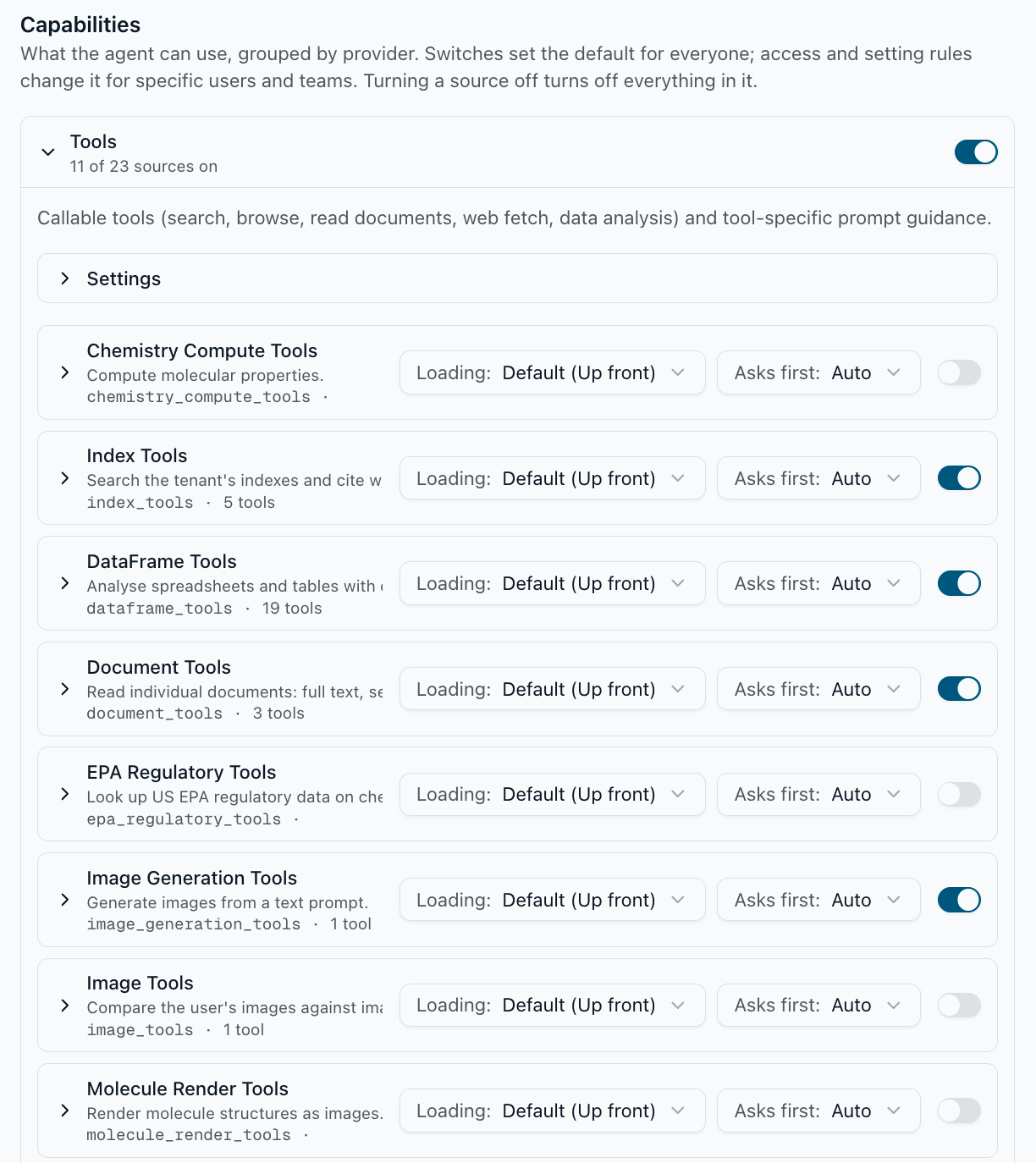
Capabilities groups what the agent can use by provider: Tools, Skills, Memory, Context, Instructions, Delegation, Message Processing, Dispatch, MCP Tools and Queued messages. Each provider expands into its sources:
- A switch on each source turns it on or off for everyone. Turning a source off turns off everything in it.
- Settings holds the source's options, for example the allowed and blocked domains of Web Tools.
- Loading and Asks first on each source set whether its tools load up front or on demand and whether they ask the user first. The tools table inside a source switches single tools on or off and sets whether each asks first, see Requiring approval for actions.
- Policies give specific users or teams different access, see Controlling who can use what.
The agent's own prompt text lives under Instructions → In-Memory Instructions. What every source does is described in Configuring Capabilities. Advanced JSON at the bottom shows the full configuration; keys the form does not show are kept as written.
To hand tasks to other agents, switch on Delegation, see How to Configure Delegation. To connect MCP servers, see Connecting MCP servers.
Display configurations
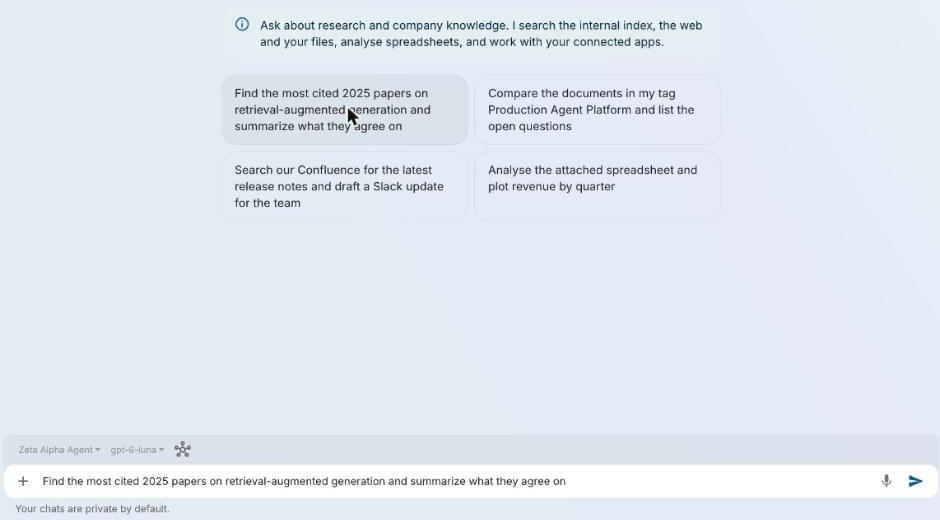
A display configuration is how the agent appears to users. One agent can have several, for example one per surface or audience. Under Display Configurations, click Add Display Configuration:
| Field | Effect |
|---|---|
| Bot Identifier | Unique name of this display configuration; surfaces refer to it |
| Display Name | The name users see in the agent picker |
| Instructions | Markdown shown to the user in an empty chat with the agent, for example what to ask it. It is not part of the agent's prompt. |
| Prompt suggestions | Clickable chips in an empty chat; clicking one fills the message box |
| Capabilities for this display configuration | Fills settings the agent leaves unset. Where both set a value, the agent wins. |
A display configuration shows in the Navigator only once it is placed on a surface, see Customizing the chat.
Share the agent
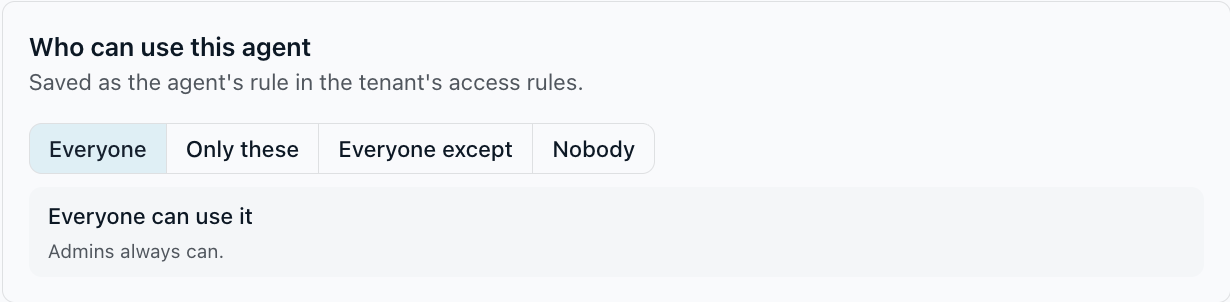
Under Who can use this agent, choose Everyone, Only these, Everyone except or Nobody, and pick the users and teams for the middle two. Tenant admins always see every agent. See Controlling who can use what.
Check the agent
The agent's page shows its model, where its display configurations are used, and its runtime configuration. It warns when a model cannot search tools on demand, and when the configuration turns on a gated capability the tenant hides, see Tenant-wide agent settings.
Delete an agent
To delete an agent, open Tenants → <tenant> → Edit Tenant JSON, remove the agent from features.chat_bot_setups and its display configurations from client_settings.bot_configurations, and save. Remove the display configurations from Agent Placement first, or surfaces keep pointing at them.
Pitfalls
- An agent whose models the rules all keep from a user is hidden from that user, even when it is shared with them.
- Display configuration settings cannot override the agent: set what must differ per surface only on the display configuration.
- Changes take a moment to show, see When changes take effect.
The JSON behind every field is in the Agent Configuration Reference.