How to Connect Slack
🔧 Tools · MCP
Slack's hosted MCP server at https://mcp.slack.com/mcp lets the agent search messages and files, read channel and DM history, post messages, and read or write canvases — scoped to the user that authorized the connection.
1. Create a Slack App
-
At api.slack.com/apps, Create New App → From scratch. Name it
Zeta Alpha MCPand pick the target workspace. -
Under Agents & AI Apps, enable Model Context Protocol.
-
(Enterprise Grid only) Under Org Level Apps, enable Enable org-readiness so an org admin can install the app once and grant it to multiple workspaces — see Slack's docs on organization-ready apps.
-
Under OAuth & Permissions:
-
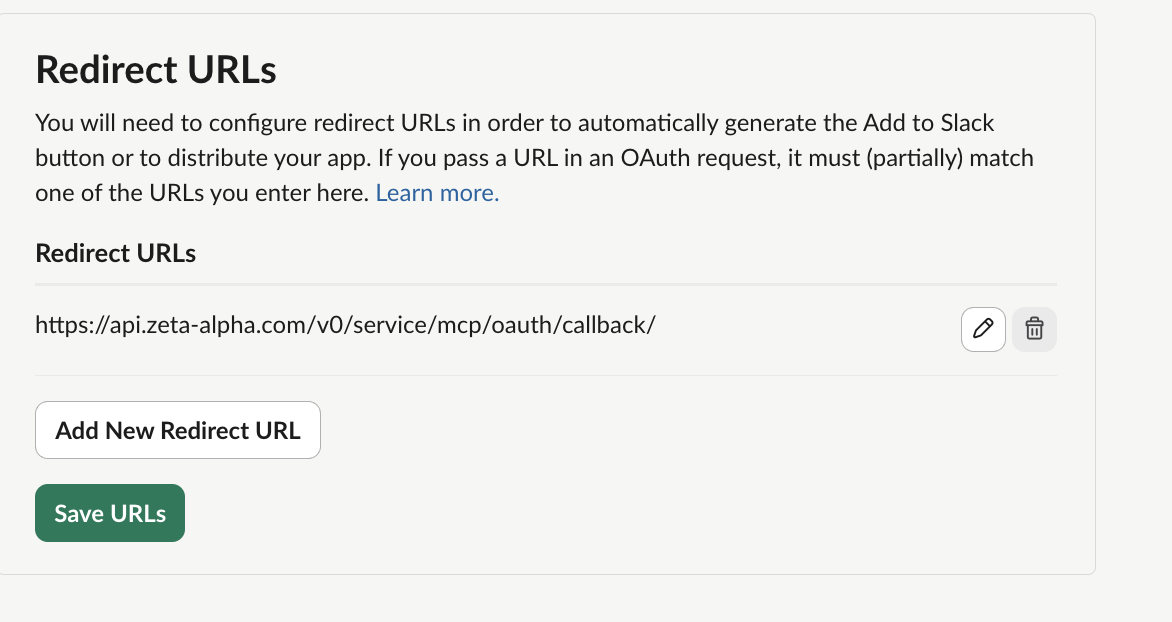
Redirect URLs — click Add New Redirect URL, enter
https://api.zeta-alpha.com/v0/service/mcp/oauth/callback/(trailing slash required), then Add and Save URLs. -
Advanced token security via token rotation — opt in. The MCP client refreshes tokens automatically.
-
User Token Scopes — add only what the agent needs (Slack admins approve focused apps more readily):
search:read.public search:read.private search:read.mpim search:read.imsearch:read.files search:read.users files:read chat:writechannels:history groups:history mpim:history im:historycanvases:read canvases:write users:read users:read.email
-
-
Copy the Client ID and Client Secret from Basic Information → App Credentials.
2. Add the Server to the Agent
In Platform Admin, open the agent's Configuration and add this entry to mcp_tools_provider_configuration.servers (see Connecting MCP Servers):
{
  "transport": "streamable-http",
  "transport_config": {
    "streamable_http": {
      "url": "https://mcp.slack.com/mcp",
      "name": "slack",
      "timeout": 30,
      "oauth_client": {
        "server_url": "https://mcp.slack.com/mcp",
        "client_id": "<Slack Client ID>",
        "client_secret": "<Slack Client secret>",
        "client_metadata": {
          "client_name": "Zeta Alpha MCP",
          "scope": "search:read.public search:read.private search:read.mpim search:read.im search:read.files search:read.users files:read chat:write channels:history groups:history mpim:history im:history canvases:read canvases:write users:read users:read.email",
          "grant_types": ["authorization_code", "refresh_token"],
          "response_types": ["code"],
          "token_endpoint_auth_method": "client_secret_post",
          "redirect_uris": [
            "https://api.zeta-alpha.com/v0/service/mcp/oauth/callback/"
          ]
        }
      },
      "terminate_on_close": true
    }
  }
}
client_metadata.scope must be a subset of the User Token Scopes on the app.
3. Connect from the Navigator
In a new chat, ask the agent for something that needs Slack (e.g. "Find recent messages mentioning the Q3 roadmap") and follow the Authorize prompt — see Connecting from the Navigator.
If the workspace requires admin approval for new apps, the user sees a "Request approval" screen — an admin needs to approve it once.
Troubleshooting
| Symptom | Cause |
|---|---|
bad_redirect_uri | Trailing-slash mismatch between the Slack app and redirect_uris. |
invalid_scope during authorization | A scope in client_metadata.scope isn't enabled under User Token Scopes. |
missing_scope at tool-call time | User authorized before a new scope was added. Re-authorize. |
not_in_channel when posting | User isn't a member of the target channel. |