How to Configure Search Filters
Search filters are the widgets shown in the search sidebar of the Zeta Alpha Navigator that let users narrow results by document metadata — for example, by document type, language, source, or tag. This guide walks you through adding a filter to an index, choosing the right widget, and configuring each widget type.
For the complete list of options, refer to the search_filters_configuration section in the Index Reference.
How search filters work
Filters are declared under client_settings.search_filters_configuration in the index configuration. This is an ordered list of filter objects; the filters appear in the search sidebar in the order you list them.
- When
search_filters_configurationis not defined, the Navigator shows its built-in default filters. - When
search_filters_configurationis defined, the search filters are limited to exactly the ones you list.
search_filters_configuration controls the filters users can see and toggle in the search sidebar. This is different from default_filters_configuration, which defines filters that are silently applied to every search and cannot be seen or removed by users. This guide covers only the user-facing search filters.
Prerequisites
Before configuring a search filter, ensure you have:
- Access to Zeta Alpha Platform Admin with configuration write permissions for the tenant.
- An existing index (see Create a Custom Index if you haven't created one).
- A filterable document field — the field you want to filter on must be defined in the index's
document_fields_configurationwith the appropriatesearch_options(see Step 1).
Step 1: Confirm the document field is filterable
A search filter operates on a field declared in document_fields_configuration. That field must have the correct search_options for filtering to work:
is_filter_fieldmust be set totruefor any filter. Without it, the field cannot be used to filter documents at retrieval time.is_facet_fieldmust additionally be set totruewhen you use afaceted_checkbox. Facet fields are what allow the search API to return the list of existing values together with their document counts.
For example, a document_type field that should support a faceted filter would be declared like this:
{
    "name": "document_type",
    "type": "string",
    "search_options": {
        "is_sort_field": false,
        "is_facet_field": true,
        "is_filter_field": true,
        "is_returned_in_search_results": true,
        "is_used_in_search": true
    }
}
If you need to add or change these options on an existing index, see Add a Custom Field to a Default Index.
Step 2: Open the Search Filters editor
Search filters are part of the index's Client Settings. In Platform Admin, open the index you want to configure. On the index detail page, find the Client Settings card and click its pencil (edit) button.
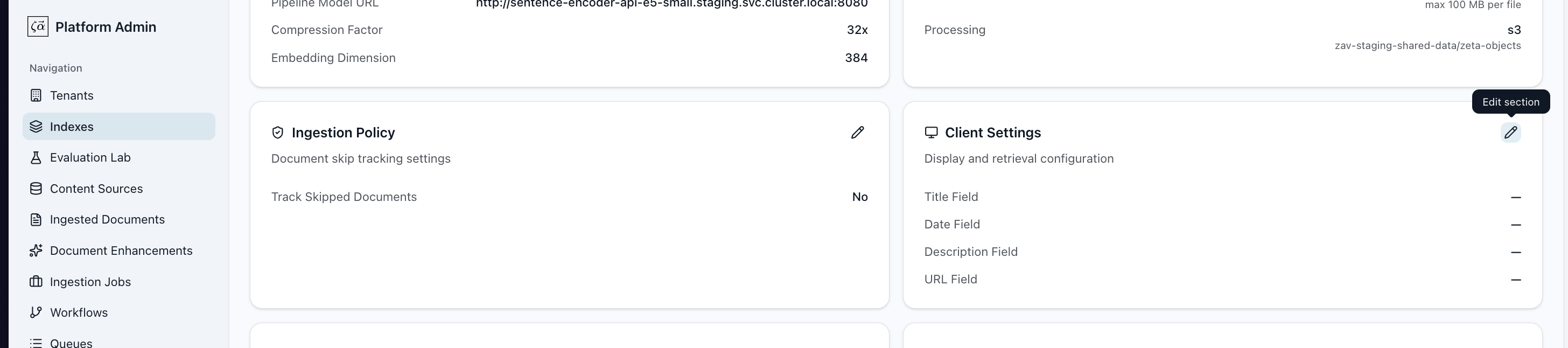
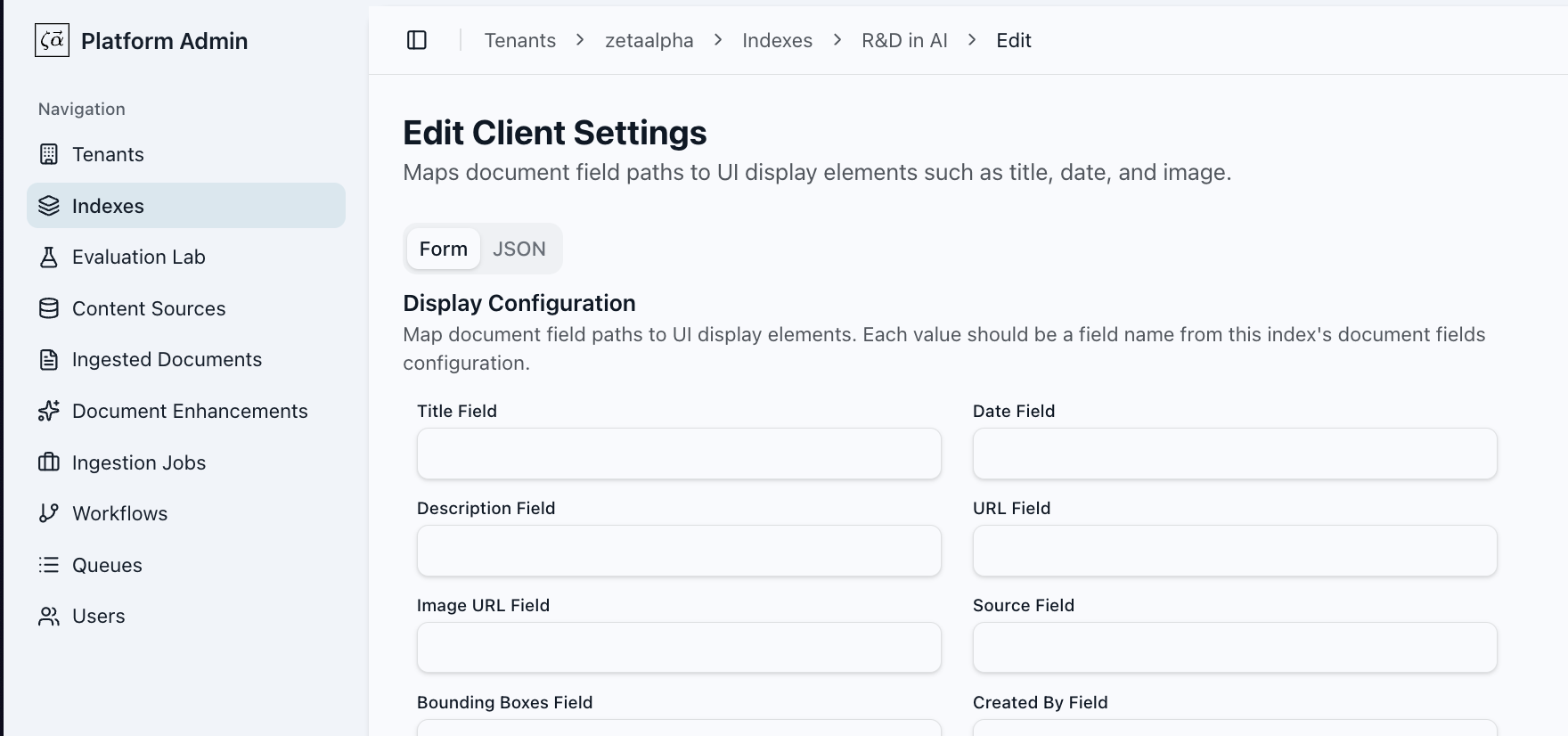
This opens the Client Settings editor, which has two tabs:
- Form — a guided editor with a section for each part of the client settings. This is the default tab.
- JSON — the raw
client_settingsobject, for advanced options such asdefault_values.
On the Form tab, scroll to the Search Filters section. It lists the filters currently configured for the index and has an Add Filter button.
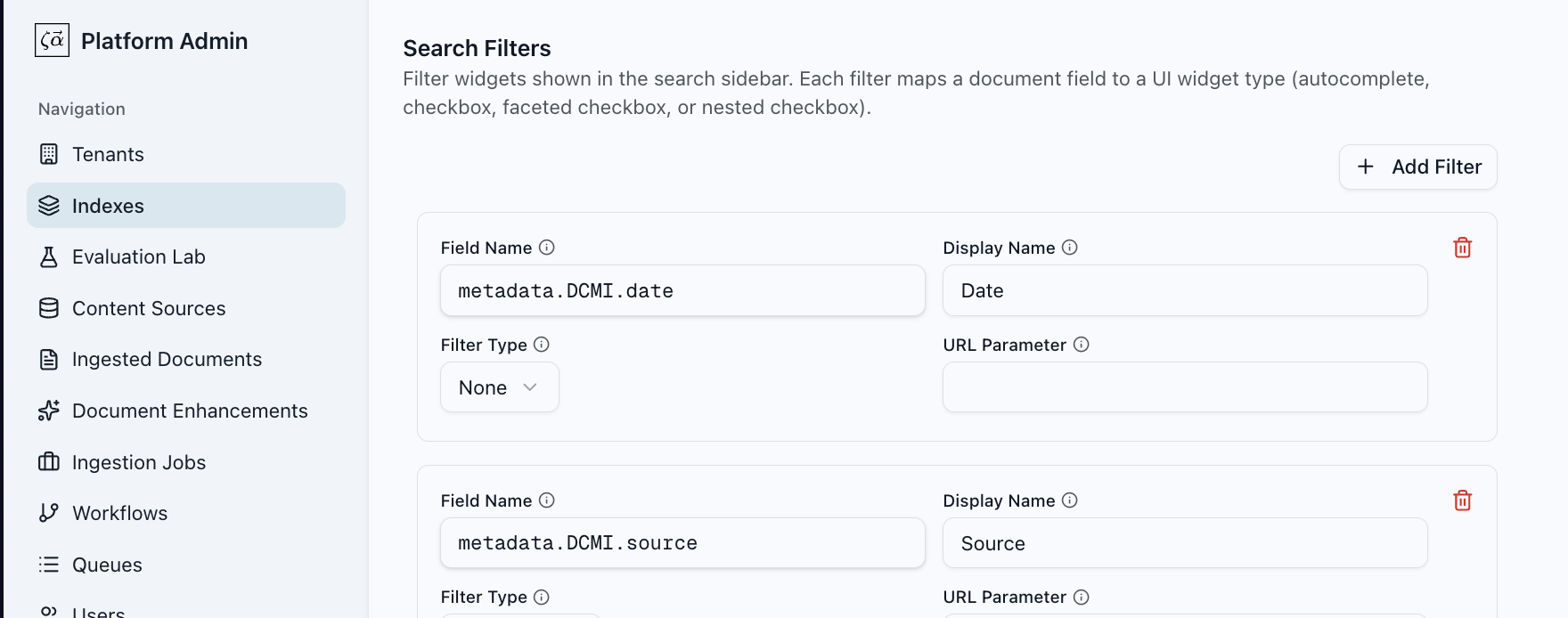
Step 3: Add or edit a filter
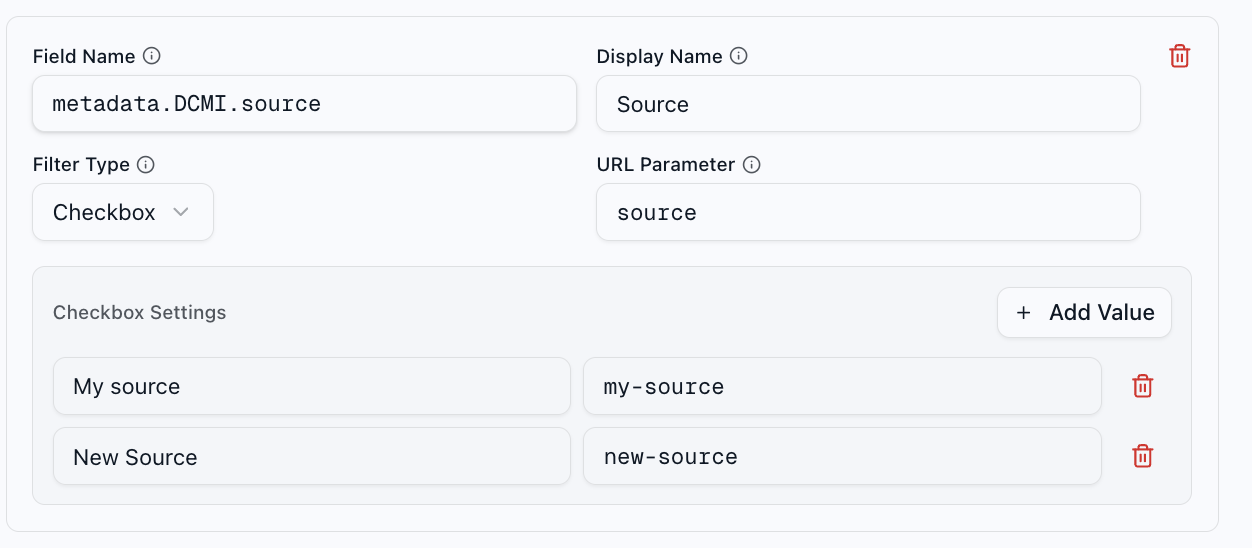
Click Add Filter to create a new filter, or select an existing one to edit it. Then fill in the fields that are common to every filter type:
- Field Name (
field_name, required): The field fromdocument_fields_configurationthat this filter operates on. As you type, the editor suggests matching field names. For example,metadata.DCMI.language. - Display Name (
display_name, required): The label shown to users above the filter in the search sidebar. For example,Language. - Filter Type (
filter_type): The widget used to render the filter. Choose one of Autocomplete, Checkbox, Faceted Checkbox, or Nested Checkbox. Selecting a type reveals the settings specific to that widget (Step 4). - URL Parameter (
url_param): The query-parameter name used in the URL when this filter is active, so filtered searches can be shared and bookmarked. For example,language.
Step 4: Configure the filter widget
After choosing a Filter Type, configure the widget-specific settings. These map to the filter_type_settings object in the JSON, where the key matches the selected type (e.g. filter_type: "checkbox" populates filter_type_settings.checkbox).
Each filter maps one document field to one UI widget. The available widgets are:
Widget (filter_type) | When to use it |
|---|---|
checkbox | A small, fixed set of known values (e.g. document type, status). You provide the exact list of options. |
autocomplete | A large set of values where a searchable text input works better than a long checkbox list (e.g. authors, organizations). |
nested_checkbox | Hierarchical values that should render as a collapsible tree (e.g. Category.Subcategory). |
faceted_checkbox | Values that should show live document counts next to each option, computed from the current result set. Supports optional nesting. |
Checkbox
Use a checkbox filter for a small, fixed set of known values. You define each option as a Label (shown to the user) and a Value (the value stored on the document and used to filter). Add one row per option with Add Value.
{
    "field_name": "document_type",
    "display_name": "Document Type",
    "filter_type": "checkbox",
    "url_param": "document_type",
    "filter_type_settings": {
        "checkbox": {
            "values": [
                { "label": "Document", "value": "document" },
                { "label": "Note", "value": "note" },
                { "label": "Patent", "value": "patent" }
            ]
        }
    }
}
values: The list of options rendered as checkboxes.label: The display name of the option. For example,Document.value: The value to filter by. For example,document.
Autocomplete
Use an autocomplete filter when the set of values is large enough that a text input with suggestions is more usable than a long list of checkboxes — for example, authors or organizations. You provide the list of suggested values as plain strings.
{
    "field_name": "authors.full_name",
    "display_name": "Author",
    "filter_type": "autocomplete",
    "url_param": "author",
    "filter_type_settings": {
        "autocomplete": {
            "values": ["Ada Lovelace", "Alan Turing", "Grace Hopper"]
        }
    }
}
values: The list of strings offered as suggestions in the autocomplete input.
Nested checkbox
Use a nested checkbox filter for hierarchical values that should render as a collapsible tree. Each value is a full path, and a Separator character splits it into levels.
{
    "field_name": "categories",
    "display_name": "Category",
    "filter_type": "nested_checkbox",
    "url_param": "category",
    "filter_type_settings": {
        "nested_checkbox": {
            "separator": ".",
            "values": [
                "Science.Physics",
                "Science.Chemistry",
                "Engineering.Software"
            ]
        }
    }
}
separator: The character used to split each value into levels. With., the valueScience.PhysicsrendersPhysicsnested insideScience.values: The list of hierarchical values, each written as a full path using the separator.
Faceted checkbox
Use a faceted checkbox filter to show a live document count next to each value, computed from the search results. The underlying document field must have is_facet_field: true (Step 1). Faceted checkboxes have several settings:
{
    "field_name": "features.tags.tag_id",
    "display_name": "Tags",
    "filter_type": "faceted_checkbox",
    "url_param": "tags",
    "filter_type_settings": {
        "faceted_checkbox": {
            "zero_count": "hide",
            "count_mode": "static",
            "sort": "term_count",
            "sort_order": "desc",
            "max_terms": 20
        }
    }
}
zero_count(required): How to display values that currently match zero documents. One of Show (show), Hide (hide), or Grayed Out (grayed_out).count_mode(required): How counts are computed. Filtered (filtered) updates counts based on the currently selected facet filters; Static (static) ignores this facet's own selections and shows totals regardless.sort(required): What to sort the values by. Term Count (term_count) or Term Value (term_value).sort_order: The sort direction. Ascending (asc) or Descending (desc).max_terms: The maximum number of values to display. Leave empty to show all.separator: Optional. If set, values are split into a nested tree the same way as a nested checkbox. Leave empty for a flat list.
Step 5: Save and verify
Click Save changes to persist the configuration. Open the index in the Navigator and confirm the filters appear in the search sidebar, render with the correct widget, and narrow the results as expected.
Full example
The following client_settings fragment configures four filters — one of each widget type — for a single index:
{
    ...
    "client_settings": {
        "search_filters_configuration": [
            {
                "field_name": "document_type",
                "display_name": "Document Type",
                "filter_type": "checkbox",
                "url_param": "document_type",
                "default_values": ["document"],
                "filter_type_settings": {
                    "checkbox": {
                        "values": [
                            { "label": "Document", "value": "document" },
                            { "label": "Note", "value": "note" },
                            { "label": "Patent", "value": "patent" }
                        ]
                    }
                }
            },
            {
                "field_name": "authors.full_name",
                "display_name": "Author",
                "filter_type": "autocomplete",
                "url_param": "author",
                "filter_type_settings": {
                    "autocomplete": {
                        "values": ["Ada Lovelace", "Alan Turing", "Grace Hopper"]
                    }
                }
            },
            {
                "field_name": "categories",
                "display_name": "Category",
                "filter_type": "nested_checkbox",
                "url_param": "category",
                "filter_type_settings": {
                    "nested_checkbox": {
                        "separator": ".",
                        "values": [
                            "Science.Physics",
                            "Science.Chemistry",
                            "Engineering.Software"
                        ]
                    }
                }
            },
            {
                "field_name": "features.tags.tag_id",
                "display_name": "Tags",
                "filter_type": "faceted_checkbox",
                "url_param": "tags",
                "filter_type_settings": {
                    "faceted_checkbox": {
                        "zero_count": "hide",
                        "count_mode": "static",
                        "sort": "term_count",
                        "sort_order": "desc",
                        "max_terms": 20
                    }
                }
            }
        ]
    }
    ...
}
Next Steps
- Index Reference — the complete
search_filters_configurationfield reference.