How to Connect Google Workspace
🔧 Tools · MCP
Google publishes a family of hosted MCP servers under https://*mcp.googleapis.com/mcp/v1, one per product. They share a single OAuth client — register one Web OAuth client in Google Cloud, enable the APIs, then reuse the same client_id/client_secret across every server entry.
Google Workspace MCP servers are part of the Google Workspace Developer Preview Program. Your Google Cloud project must be enrolled before the MCP services become available.
Sheets, Docs, and Slides were added to the program separately from Gmail/Drive/Calendar/People/Chat. A project enrolled for the original five is not automatically enrolled for Sheets/Docs/Slides — check enrollment per product, and expect to create a separate OAuth client for Sheets/Docs/Slides unless your existing client's project is also enrolled for them.
| Product | MCP URL | Required scopes (prefix every entry with https://www.googleapis.com/auth/) |
|---|---|---|
| Gmail | https://gmailmcp.googleapis.com/mcp/v1 | gmail.readonly, gmail.compose |
| Drive | https://drivemcp.googleapis.com/mcp/v1 | drive.readonly, drive.file |
| Calendar | https://calendarmcp.googleapis.com/mcp/v1 | calendar.calendarlist.readonly, calendar.events.freebusy, calendar.events.readonly |
| People | https://people.googleapis.com/mcp/v1 | directory.readonly, userinfo.profile, contacts.readonly |
| Chat | https://chatmcp.googleapis.com/mcp/v1 | chat.spaces.readonly, chat.memberships.readonly, chat.messages.readonly, chat.messages.create, chat.users.readstate.readonly |
| Sheets | https://sheetsmcp.googleapis.com/mcp/v1 | spreadsheets.readonly, drive.readonly |
| Docs | https://docsmcp.googleapis.com/mcp/v1 | documents.readonly, drive.readonly |
| Slides | https://slidesmcp.googleapis.com/mcp/v1 | presentations.readonly, drive.readonly |
1. Set Up Google Cloud
In Google Cloud Console, with a project selected:
- APIs & Services → Library — enable the product APIs you plan to use:
Gmail API,Google Drive API,Google Calendar API,Google Chat API,People API,Google Sheets API,Google Docs API,Google Slides API. - Enable the MCP services for each product:
Gmail MCP API,Drive MCP API,Google Calendar MCP API,Chat MCP API,Sheets MCP API,Docs MCP API,Slides MCP API. These are separate entries in the API Library. - (Chat only) Open Google Chat API → Manage → Configuration. Set App name to
Chat MCP, Avatar URL tohttps://developers.google.com/chat/images/quickstart-app-avatar.png, Description toChat MCP server, toggle Enable interactive features off, enable Log errors to Logging, and click Save. - APIs & Services → OAuth consent screen — click Get started:
- App name:
Workspace MCP Servers. Select a User support email. - Audience: Internal if every user belongs to your Workspace, otherwise External.
- Contact Information: enter an email address.
- Agree to the terms, click Continue, then Create.
- Open Data Access → Add or Remove Scopes and add every scope from the table above that you intend to use. Click Update, then click Save.
- If you chose External, add test users under Audience → Test users until you publish.
- App name:
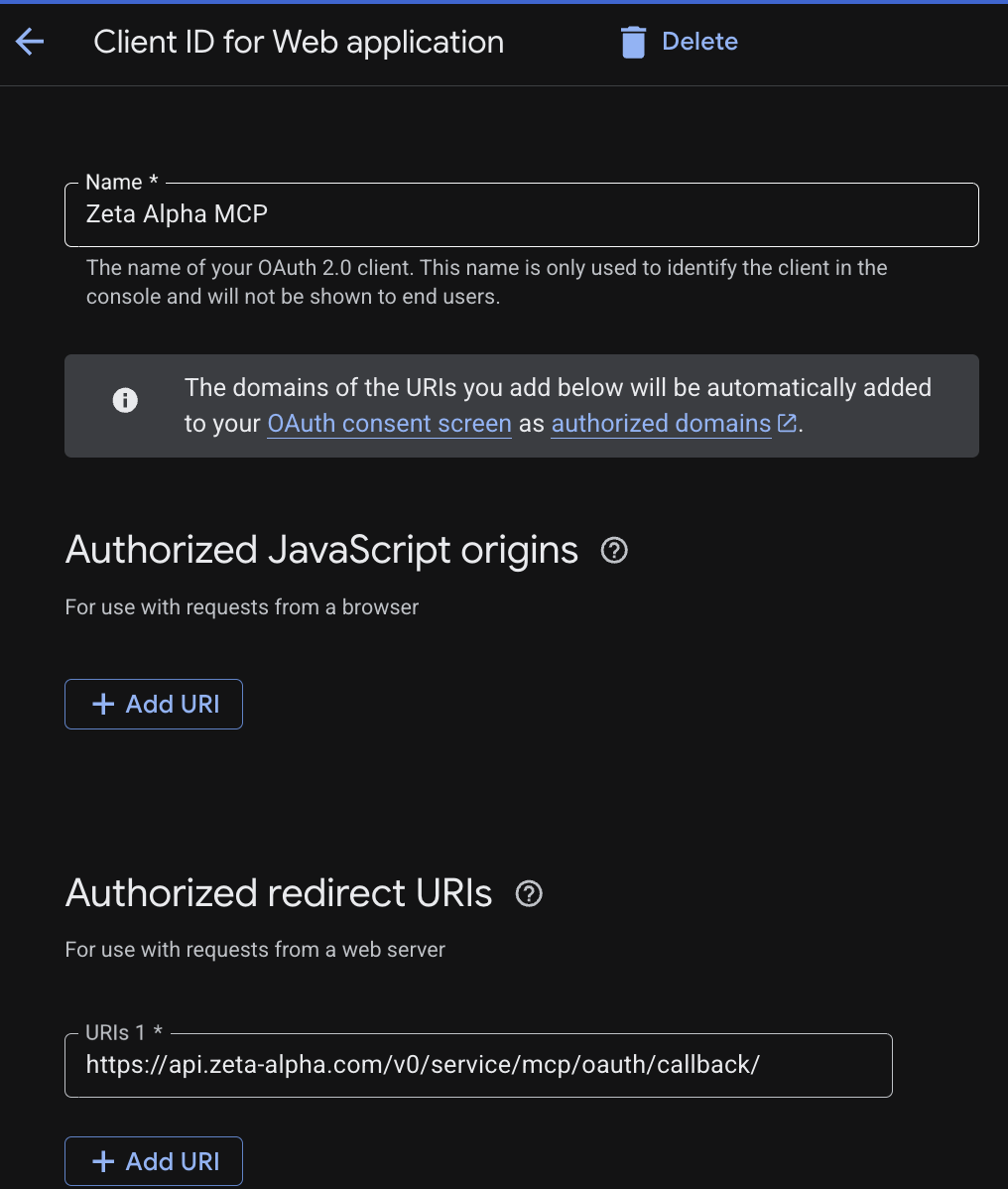
- APIs & Services → Clients → Create client:
- Application type:
Web application. - Name:
Zeta Alpha MCP. - Authorized redirect URIs:
https://api.zeta-alpha.com/v0/service/mcp/oauth/callback/— with a trailing slash. Google rejects the URL otherwise.
- Application type:
- Copy the Client ID and Client secret.
2. Add the Servers to the Agent
In Platform Admin, open the agent's Configuration and add one entry per product to mcp_tools_provider_configuration.servers (see Connecting MCP Servers):
Gmail
{
  "transport": "streamable-http",
  "transport_config": {
    "streamable_http": {
      "url": "https://gmailmcp.googleapis.com/mcp/v1",
      "name": "google-gmail",
      "timeout": 30,
      "oauth_client": {
        "server_url": "https://gmailmcp.googleapis.com/mcp/v1",
        "client_id": "<Google Client ID>",
        "client_secret": "<Google Client secret>",
        "client_metadata": {
          "client_name": "Zeta Alpha MCP",
          "scope": "https://www.googleapis.com/auth/gmail.readonly https://www.googleapis.com/auth/gmail.compose",
          "grant_types": ["authorization_code", "refresh_token"],
          "response_types": ["code"],
          "token_endpoint_auth_method": "client_secret_post",
          "redirect_uris": [
            "https://api.zeta-alpha.com/v0/service/mcp/oauth/callback/"
          ]
        }
      },
      "terminate_on_close": true
    }
  }
}
Drive
{
  "transport": "streamable-http",
  "transport_config": {
    "streamable_http": {
      "url": "https://drivemcp.googleapis.com/mcp/v1",
      "name": "google-drive",
      "timeout": 30,
      "oauth_client": {
        "server_url": "https://drivemcp.googleapis.com/mcp/v1",
        "client_id": "<Google Client ID>",
        "client_secret": "<Google Client secret>",
        "client_metadata": {
          "client_name": "Zeta Alpha MCP",
          "scope": "https://www.googleapis.com/auth/drive.readonly https://www.googleapis.com/auth/drive.file",
          "grant_types": ["authorization_code", "refresh_token"],
          "response_types": ["code"],
          "token_endpoint_auth_method": "client_secret_post",
          "redirect_uris": [
            "https://api.zeta-alpha.com/v0/service/mcp/oauth/callback/"
          ]
        }
      },
      "terminate_on_close": true
    }
  }
}
Calendar
{
  "transport": "streamable-http",
  "transport_config": {
    "streamable_http": {
      "url": "https://calendarmcp.googleapis.com/mcp/v1",
      "name": "google-calendar",
      "timeout": 30,
      "oauth_client": {
        "server_url": "https://calendarmcp.googleapis.com/mcp/v1",
        "client_id": "<Google Client ID>",
        "client_secret": "<Google Client secret>",
        "client_metadata": {
          "client_name": "Zeta Alpha MCP",
          "scope": "https://www.googleapis.com/auth/calendar.calendarlist.readonly https://www.googleapis.com/auth/calendar.events.freebusy https://www.googleapis.com/auth/calendar.events.readonly",
          "grant_types": ["authorization_code", "refresh_token"],
          "response_types": ["code"],
          "token_endpoint_auth_method": "client_secret_post",
          "redirect_uris": [
            "https://api.zeta-alpha.com/v0/service/mcp/oauth/callback/"
          ]
        }
      },
      "terminate_on_close": true
    }
  }
}
People
{
  "transport": "streamable-http",
  "transport_config": {
    "streamable_http": {
      "url": "https://people.googleapis.com/mcp/v1",
      "name": "google-people",
      "timeout": 30,
      "oauth_client": {
        "server_url": "https://people.googleapis.com/mcp/v1",
        "client_id": "<Google Client ID>",
        "client_secret": "<Google Client secret>",
        "client_metadata": {
          "client_name": "Zeta Alpha MCP",
          "scope": "https://www.googleapis.com/auth/directory.readonly https://www.googleapis.com/auth/userinfo.profile https://www.googleapis.com/auth/contacts.readonly",
          "grant_types": ["authorization_code", "refresh_token"],
          "response_types": ["code"],
          "token_endpoint_auth_method": "client_secret_post",
          "redirect_uris": [
            "https://api.zeta-alpha.com/v0/service/mcp/oauth/callback/"
          ]
        }
      },
      "terminate_on_close": true
    }
  }
}
Chat
{
  "transport": "streamable-http",
  "transport_config": {
    "streamable_http": {
      "url": "https://chatmcp.googleapis.com/mcp/v1",
      "name": "google-chat",
      "timeout": 30,
      "oauth_client": {
        "server_url": "https://chatmcp.googleapis.com/mcp/v1",
        "client_id": "<Google Client ID>",
        "client_secret": "<Google Client secret>",
        "client_metadata": {
          "client_name": "Zeta Alpha MCP",
          "scope": "https://www.googleapis.com/auth/chat.spaces.readonly https://www.googleapis.com/auth/chat.memberships.readonly https://www.googleapis.com/auth/chat.messages.readonly https://www.googleapis.com/auth/chat.messages.create https://www.googleapis.com/auth/chat.users.readstate.readonly",
          "grant_types": ["authorization_code", "refresh_token"],
          "response_types": ["code"],
          "token_endpoint_auth_method": "client_secret_post",
          "redirect_uris": [
            "https://api.zeta-alpha.com/v0/service/mcp/oauth/callback/"
          ]
        }
      },
      "terminate_on_close": true
    }
  }
}
Sheets
{
  "transport": "streamable-http",
  "transport_config": {
    "streamable_http": {
      "url": "https://sheetsmcp.googleapis.com/mcp/v1",
      "name": "google-sheets",
      "timeout": 30,
      "oauth_client": {
        "server_url": "https://sheetsmcp.googleapis.com/mcp/v1",
        "client_id": "<Google Client ID>",
        "client_secret": "<Google Client secret>",
        "client_metadata": {
          "client_name": "Zeta Alpha MCP",
          "scope": "https://www.googleapis.com/auth/spreadsheets.readonly https://www.googleapis.com/auth/drive.readonly",
          "grant_types": ["authorization_code", "refresh_token"],
          "response_types": ["code"],
          "token_endpoint_auth_method": "client_secret_post",
          "redirect_uris": [
            "https://api.zeta-alpha.com/v0/service/mcp/oauth/callback/"
          ]
        }
      },
      "terminate_on_close": true
    }
  }
}
Docs
{
  "transport": "streamable-http",
  "transport_config": {
    "streamable_http": {
      "url": "https://docsmcp.googleapis.com/mcp/v1",
      "name": "google-docs",
      "timeout": 30,
      "oauth_client": {
        "server_url": "https://docsmcp.googleapis.com/mcp/v1",
        "client_id": "<Google Client ID>",
        "client_secret": "<Google Client secret>",
        "client_metadata": {
          "client_name": "Zeta Alpha MCP",
          "scope": "https://www.googleapis.com/auth/documents.readonly https://www.googleapis.com/auth/drive.readonly",
          "grant_types": ["authorization_code", "refresh_token"],
          "response_types": ["code"],
          "token_endpoint_auth_method": "client_secret_post",
          "redirect_uris": [
            "https://api.zeta-alpha.com/v0/service/mcp/oauth/callback/"
          ]
        }
      },
      "terminate_on_close": true
    }
  }
}
Slides
{
  "transport": "streamable-http",
  "transport_config": {
    "streamable_http": {
      "url": "https://slidesmcp.googleapis.com/mcp/v1",
      "name": "google-slides",
      "timeout": 30,
      "oauth_client": {
        "server_url": "https://slidesmcp.googleapis.com/mcp/v1",
        "client_id": "<Google Client ID>",
        "client_secret": "<Google Client secret>",
        "client_metadata": {
          "client_name": "Zeta Alpha MCP",
          "scope": "https://www.googleapis.com/auth/presentations.readonly https://www.googleapis.com/auth/drive.readonly",
          "grant_types": ["authorization_code", "refresh_token"],
          "response_types": ["code"],
          "token_endpoint_auth_method": "client_secret_post",
          "redirect_uris": [
            "https://api.zeta-alpha.com/v0/service/mcp/oauth/callback/"
          ]
        }
      },
      "terminate_on_close": true
    }
  }
}
Sheets, Docs, and Slides currently need their own OAuth client — see the note in step 1. Repeat the client-creation steps above for a second Google Cloud project enrolled for these three products, then substitute its client_id/client_secret into each block.
3. Connect from the Navigator
Each product is a separate MCP server and requires its own authorization. In a new chat, ask the agent for something that needs a specific product (e.g. "Summarize my unread emails") and follow the Authorize prompt — see Connecting from the Navigator. Repeat for each product the agent uses.
Troubleshooting
| Symptom | Cause |
|---|---|
Error 400: redirect_uri_mismatch | Almost always the trailing slash. The redirect URI in the JSON must match the one in Google Cloud exactly. Also check that the URI is registered at all — a newly-created client (e.g. the separate one for Sheets/Docs/Slides) starts with an empty Authorized redirect URIs list. |
Access blocked: this app's request is invalid | Consent screen is in Testing and the user isn't a test user, or a scope is missing from the Data Access list. |
| MCP services not found in API Library | The project isn't enrolled in the Google Workspace Developer Preview Program. |
insufficient authentication scopes at tool-call time | User authorized before a new scope was added. Re-authorize. |
| Calls succeed but return empty data | The product API or MCP service isn't enabled on the project. |