Create a SharePoint Connector
A SharePoint connector enables you to ingest data from your SharePoint instance (and OneDrive) into the Zeta Alpha platform. This guide shows you how to create and configure a SharePoint connector for your data ingestion workflows, including options that impact crawling performance.
The connector ingests document library files and, optionally, OneNote notebooks (each notebook page becomes its own document) and SharePoint lists (each list item becomes its own document). OneNote requires an extra Microsoft Graph permission, username/password credentials, and has its own change-detection and deletion behaviour; see OneNote notebooks. Lists require an extra SharePoint permission to read item access rights; see SharePoint lists.
Info: This guide presents an example configuration for a SharePoint connector. For a complete set of configuration options, see the SharePoint Connector Configuration Reference.
Prerequisites
Before you begin, ensure you have:
- Access to the Zeta Alpha Platform UI
- A tenant created
- An index created
- Microsoft App (SharePoint/OneDrive) credentials (refer to the tutorial Configure Microsoft App Access for detailed instructions)
- To ingest OneNote notebooks, the delegated
Notes.Read.AllMicrosoft Graph permission on that same app with admin consent granted, and the username and password of an account that can open the notebooks, since the OneNote API accepts user-delegated tokens only (see Required permissions and authentication below and Optional: OneNote notebooks in the Microsoft app access tutorial) - To ingest SharePoint lists, the
Sites.FullControl.Allapplication permission on the Office 365 SharePoint Online API (not Microsoft Graph), and certificate or username/password credentials: reading item access rights goes through the SharePoint REST API, which rejects client-secret tokens (see Required permissions and credentials below and SharePoint API permissions in the Microsoft app access tutorial)
Step 1: Create the SharePoint Basic Configuration
To create a SharePoint connector, define a configuration file with the following basic fields:
is_document_owner: (boolean) Indicates whether this connector "owns" the crawled documents. When set totrue, other connectors cannot crawl the same documents.schedule: (string, optional) The schedule to crawl the SharePoint instance (cron format).content_source_name: (string) The name that identifies the content source in the index.certificate_credentials: (object, optional) The application credentials for certificate-based authentication. This is the recommended method — it supports all connector features including incremental permission sync, private keys never leave your infrastructure, and certificates can be rotated without updating Azure AD:client_id: The client ID of your SharePoint applicationtenant_id: The tenant ID of your SharePoint applicationcertificate_private_key: The PEM-encoded private key of the certificatecertificate_thumbprint: (optional) The SHA-1 thumbprint of the certificate. Not required whencertificate_public_keyis provided, since MSAL computes it automatically. Only needed if you omit the public certificate.certificate_public_key: (optional) The PEM-encoded public certificate. Not required whencertificate_thumbprintis provided. Required when using Subject Name/Issuer (SNI) authentication.
access_credentials: (object, optional) The application credentials using a client secret. Discouraged — client secret authentication does not support incremental permission detection, requiring a full access rights crawl instead which is slower and uses more API requests:client_id: The client ID of your SharePoint applicationclient_secret: The client secret of your SharePoint applicationtenant_id: The tenant ID of your SharePoint application
public_access_credentials: (object, optional) The user credentials for username/password authentication. Highly discouraged — requires storing user passwords and the account must not have MFA enabled:username: The username for SharePoint accesspassword: The password for SharePoint accessclient_secret: The client secret of your SharePoint applicationtenant_id: The tenant ID of your SharePoint application
certificate_credentials: (object, optional) The application credentials for certificate-based authentication. This is more secure than client secrets and recommended for production environments:client_id: The client ID of your SharePoint applicationtenant_id: The tenant ID of your SharePoint applicationcertificate_private_key: The PEM-encoded private key of the certificatecertificate_thumbprint: (optional) The SHA-1 thumbprint of the certificate. Not required whencertificate_public_keyis provided, since MSAL computes it automatically. Only needed if you omit the public certificate.certificate_public_key: (optional) The PEM-encoded public certificate. Not required whencertificate_thumbprintis provided. Required when using Subject Name/Issuer (SNI) authentication.
logo_url: (string, optional) The URL of a logo to display on document cards when no image is extracted from the pipeline.custom_metadata: (object, optional) Static key-value pairs added to every ingested document. See Content Source Custom Metadata.
Note: You must provide exactly one of certificate_credentials (certificate-based, recommended), access_credentials (client secret, discouraged), or public_access_credentials (username/password, highly discouraged).
Example Configuration
Here is an example of a basic SharePoint connector configuration with certificate-based authentication (recommended):
{
    "name": "my_sharepoint_connector",
    "description": "My SharePoint connector for product data",
    "is_indexable": true,
    "connector": "sharepoint",
    "connector_configuration": {
        "sharepoint": {
            "is_document_owner": true,
            "content_source_name": "SharePoint Files",
            "certificate_credentials": {
                "client_id": "my_client_id",
                "tenant_id": "my_tenant_id",
                "certificate_private_key": "-----BEGIN PRIVATE KEY-----\nMIIEv...\n-----END PRIVATE KEY-----",
                "certificate_thumbprint": "AB12CD34EF56...",
                "certificate_public_key": "-----BEGIN CERTIFICATE-----\nMIIC/j...\n-----END CERTIFICATE-----"
            },
            "logo_url": "https://mycompany.com/logo.png"
        }
    }
}
Alternatively, you can use client secret authentication with access_credentials, but this is discouraged because it does not support incremental permission detection. Permission updates require a full access rights crawl, which is slower and consumes more API requests:
{
    "name": "my_sharepoint_connector",
    "description": "My SharePoint connector for product data",
    "is_indexable": true,
    "connector": "sharepoint",
    "connector_configuration": {
        "sharepoint": {
            "is_document_owner": true,
            "content_source_name": "SharePoint Files",
            "access_credentials": {
                "client_id": "my_client_id",
                "client_secret": "my_client_secret",
                "tenant_id": "my_tenant_id"
            },
            "logo_url": "https://mycompany.com/logo.png"
        }
    }
}
You can also use username/password authentication with public_access_credentials, but this is highly discouraged:
{
    "name": "my_sharepoint_connector",
    "description": "My SharePoint connector for product data",
    "is_indexable": true,
    "connector": "sharepoint",
    "connector_configuration": {
        "sharepoint": {
            "is_document_owner": true,
            "content_source_name": "SharePoint Files",
            "public_access_credentials": {
                "username": "user@domain.com",
                "password": "user_password",
                "client_secret": "my_client_secret",
                "tenant_id": "my_tenant_id"
            },
            "logo_url": "https://mycompany.com/logo.png"
        }
    }
}
Step 2: Add Field Mapping Configuration
When crawling SharePoint, the connector extracts document metadata and content as described in the SharePoint Connector Configuration Reference. You can map these SharePoint fields to your index fields using the field_mappings configuration.
Example Field Mappings
The following example shows field mappings for the default index fields:
{
    ...
    "connector_configuration": {
        "sharepoint": {
        ...
        "field_mappings": [
                {
                    "content_source_field_name": "name",
                    "index_field_name": "DCMI.title"
                },
                {
                    "content_source_field_name": "last_modified_date_time",
                    "index_field_name": "DCMI.modified"
                },
                {
                    "content_source_field_name": "created_date_time",
                    "index_field_name": "DCMI.created"
                },
                {
                    "content_source_field_name": "author",
                    "index_field_name": "DCMI.creator",
                    "inner_field_mappings": [
                        {
                            "content_source_field_name": "display_name",
                            "index_field_name": "full_name"
                        },
                        {
                            "content_source_field_name": "display_name",
                            "index_field_name": "Ontology_ID"
                        }
                    ]
                },
                {
                    "content_source_field_name": "content_source_name",
                    "index_field_name": "DCMI.source"
                }
            ],
            ...
        }
    ...
    }
}
Step 3: Specify What to Crawl
You can configure the SharePoint connector to crawl specific content from your SharePoint instance. While a full crawl is possible, we recommend specifying what to crawl to avoid unnecessary data and improve performance.
Available Configuration Options
include_one_drives: (boolean, optional) Whether to include OneDrives in the crawl.one_drive_users: (array of strings, optional) If OneDrives are included, specify the email addresses of users whose drives should be crawled.include_onenote: (boolean, optional, defaultfalse) Also crawl OneNote notebooks in scope, ingesting each notebook page as its own HTML document. Requirespublic_access_credentialsand the delegatedNotes.Read.Allpermission; the OneNote API rejects certificate and client-secret credentials. See OneNote notebooks.include_onenote_resources: (boolean, optional, defaultfalse) Inline the images and file attachments embedded in a OneNote page into the page's own content. See Embedded images and attachments.onenote_only: (boolean, optional, defaultfalse) Ingest only OneNote pages and skip every document library file. Impliesinclude_onenote. Use this to run OneNote as a separate content source on its own schedule — see Running OneNote as its own sync job.content_configuration: (object, optional) Per-resource crawl configuration. Document library files are always crawled; every other resource type is opted in through its own block.lists: (object, optional) SharePoint list crawling.enabled: (boolean, optional, defaultfalse) Also ingest SharePoint lists on the in-scope sites, onetext/htmldocument per list item. Requires certificate or username/password credentials and a source running onscheduled_tasks(a source on the singleschedulecron ingests no list items); reading each list's permissions takes theSites.FullControl.AllSharePoint permission. See SharePoint lists.include_hidden: (boolean, optional, defaultfalse) Also ingest lists hidden from the site contents page. This includes some lists SharePoint creates for itself, such asCSPViolationReportList, so pair it withname_inclusion_regex_patterns.name_inclusion_regex_patterns: (array of strings, optional) Regular expressions matched against list display names; only matching lists are ingested.name_exclusion_regex_patterns: (array of strings, optional) Regular expressions matched against list display names; matching lists are skipped. Exclusion takes precedence over inclusion.
drive_ids: (array of strings, optional) Specific drive IDs to crawl. When provided, site discovery is skipped for the file crawl and only the specified drives are crawled. Drive IDs can be obtained from the Microsoft Graph API. Lists are not drive-scoped: with list crawling enabled, lists still follow the site scope settings.drive_inclusion_regex_patterns: (array of strings, optional) Regular expressions to match specific drives to crawl.drive_exclusion_regex_patterns: (array of strings, optional) Regular expressions to exclude specific drives from the crawl.site_paths: (array of objects, optional) Specific sites to crawl. If not specified, the connector crawls all sites. Each object contains:collection_hostname: The hostname of the SharePoint instancesite_relative_path: The relative path of the site to crawl
include_sub_sites: (boolean, optional) If nosite_pathsspecified, whether to include sub-sites in the crawl.site_inclusion_regex_patterns: (array of strings, optional) Regular expressions to match specific sites to crawl.site_exclusion_regex_patterns: (array of strings, optional) Regular expressions to exclude specific sites from the crawl.path_inclusion_regex_patterns: (array of strings, optional) Regular expressions to match specific file paths to crawl.path_exclusion_regex_patterns: (array of strings, optional) Regular expressions to exclude specific file paths from the crawl.allow_access_rights: (array of objects, optional) A list aditional access rights to grant to all documents crawled by this connector. Each object must contain:name: The name of the access right (e.g. group name or email)type: The type of access right (userorgroup)
deny_access_rights: (array of objects, optional) A list of access rights to deny to all documents crawled by this connector. Structure is the same asallow_access_rights.
Example Configurations
Example 1: Crawl all information in the SharePoint instance
{
    "name": "my_sharepoint_connector",
    "description": "My SharePoint connector for product data",
    "is_indexable": true,
    "connector": "sharepoint",
    "connector_configuration": {
        "sharepoint": {
            "is_document_owner": true,
            "content_source_name": "SharePoint Files",
            "access_credentials": {
                "client_id": "my_client_id",
                "client_secret": "my_client_secret",
                "tenant_id": "my_tenant_id"
            },
            "logo_url": "https://mycompany.com/logo.png",
            "include_one_drives": true,
            "one_drive_users": [
                "zeta@zeta-alpha.com",
                "alpha@zeta-alpha.com"
            ],
            "field_mappings": [
                ...
            ]
        }
    }
}
Example 2: Crawl only specific sites and paths
{
    "name": "my_sharepoint_connector",
    "description": "My SharePoint connector for product data",
    "is_indexable": true,
    "connector": "sharepoint",
    "connector_configuration": {
        "sharepoint": {
            "is_document_owner": true,
            "content_source_name": "SharePoint Files",
            "access_credentials": {
                "client_id": "my_client_id",
                "client_secret": "my_client_secret",
                "tenant_id": "my_tenant_id"
            },
            "logo_url": "https://mycompany.com/logo.png",
            "include_sub_sites": true,
            "drive_inclusion_regex_patterns": [
                "ZetaDrive/.*"
            ],
            "site_exclusion_regex_patterns": [
                "Zeta Private Team"
            ],
            "path_inclusion_regex_patterns": [
                "ZetaFiles/.*\\.docx$",
                "ZetaFiles/.*\\.xlsx$"
            ],
            "field_mappings": [
                ...
            ]
        }
    }
}
Step 4: Create the SharePoint Connector
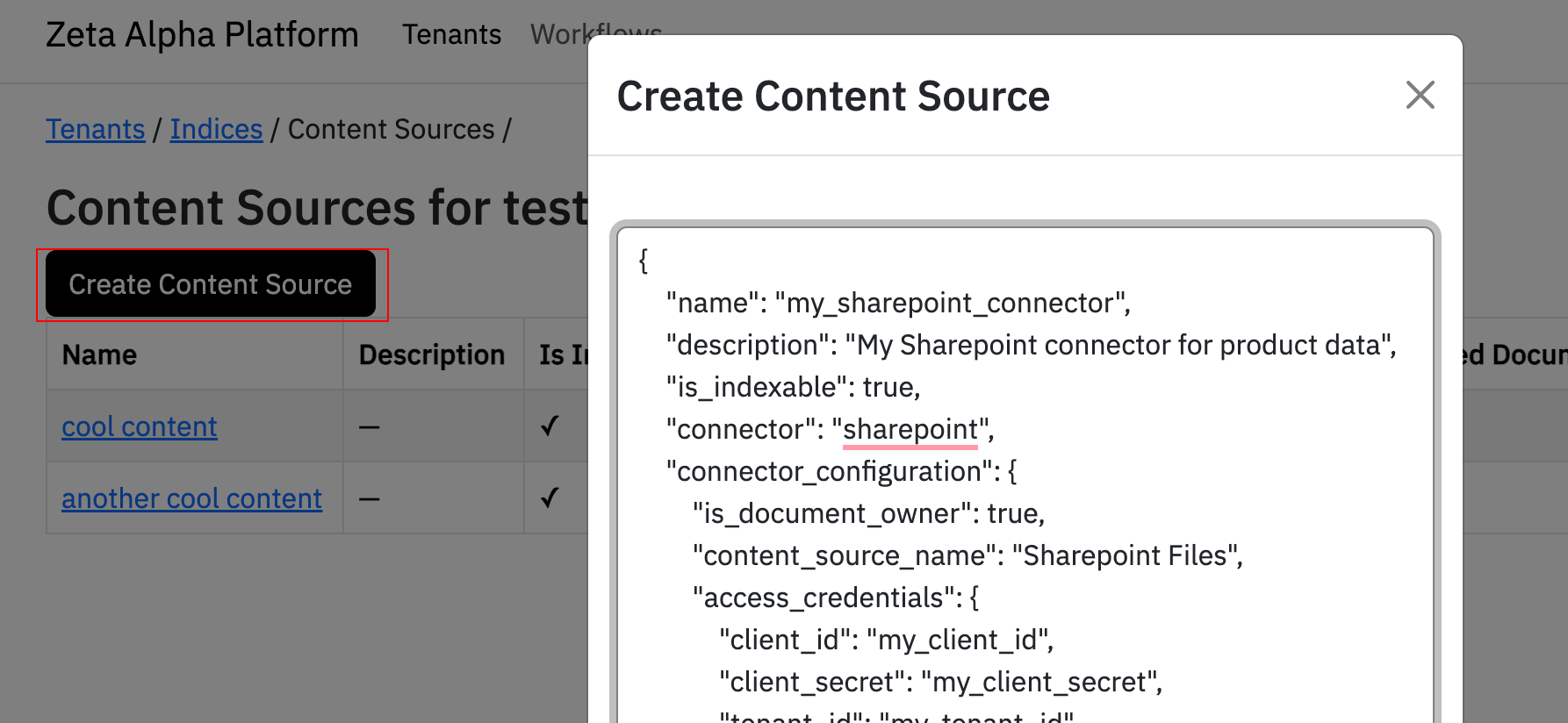
To create your SharePoint connector in the Zeta Alpha Platform UI:
- Navigate to your tenant and click View next to your target index
- Click View under Content Sources for the index
- Click Create Content Source
- Paste your JSON configuration
- Click Submit
Crawling Behavior
The first time the connector runs, it crawls all information specified in the connector configuration.
After the initial crawl, only new, deleted, and modified documents will be crawled for the specified sites, drives, and paths. This incremental approach avoids crawling unnecessary data and improves performance.
Incremental Permission Sync
In addition to content changes, the connector also detects permission-only changes (e.g., when a user is granted or revoked access to a document without modifying the document itself). This uses the SharePoint REST getchanges API to track role assignment additions and removals.
Note: Incremental permission detection requires delegated authentication (certificate or ROPC credentials). Client secret authentication (app-only tokens) does not support the SharePoint
getchangesAPI and will skip incremental permission updates. Use the full access rights crawl as a workaround (see below).
Full Access Rights Crawl
You can configure the connector to perform a full access rights refresh without re-downloading content. This iterates all documents and emits updated permissions, then advances the access rights change token while leaving content tokens untouched.
This is useful for:
- Bulk-refreshing permissions at any point in time
- Working around the client secret limitation for incremental permission detection
- Recovering from a missed permission change window
To enable, set full_access_rights_crawl to true in the connector configuration:
{
    "name": "my_sharepoint_connector",
    "connector": "sharepoint",
    "connector_configuration": {
        "sharepoint": {
            ...
            "full_access_rights_crawl": true
        }
    }
}
Since-Date Crawl
You can reseed delta crawling from a specific date by setting since_crawl_date (in YYYY-MM-DD format). When set, the connector ignores the stored delta tokens for that run and re-detects content and access-right changes modified on or after that date, then refreshes the tokens so subsequent runs resume incrementally.
This is useful for:
- Recovering from a missed change window
- Backfilling changes after expanding the crawl scope (e.g., adding new
site_pathsordrive_ids) - Catching up changes without paying for a full re-crawl
since_crawl_date is ignored when full_crawl is true.
{
    "name": "my_sharepoint_connector",
    "connector": "sharepoint",
    "connector_configuration": {
        "sharepoint": {
            ...
            "since_crawl_date": "2024-01-15"
        }
    }
}
Crawl Mode Priority
When the connector runs, it selects the crawl mode in the following order:
- Full crawl — if
full_crawlis set totrue - Since-date crawl — if
since_crawl_dateis set - Full crawl — if this is the first run (no delta tokens stored)
- Full access rights crawl — if
full_access_rights_crawlis set totrue - Update crawl — incremental mode (default)
Authentication and Feature Compatibility
| Feature | Certificate | ROPC | Client Secret |
|---|---|---|---|
| Full crawl | ✅ | ✅ | ✅ |
| Incremental content changes | ✅ | ✅ | ✅ |
| Incremental permission changes | ✅ | ✅ | ❌ |
| Full access rights crawl | ✅ | ✅ | ✅ |
| OneNote notebooks | ❌ | ✅ | ❌ |
| SharePoint lists | ✅ | ✅ | ❌ |
OneNote is the one feature that inverts the recommendation: its Graph API takes user-delegated tokens only, so it needs ROPC (public_access_credentials) and rejects both application credential types. See Required permissions and authentication.
Lists rule out the client secret for a different reason: item access rights are read over the SharePoint REST API, which accepts app-only tokens only when they are proven with a certificate. A client-secret source gets 401 Unsupported app only token on every list item, whatever permissions are consented. See Required permissions and credentials.
Scheduling with Task Types
A SharePoint source syncs along two dimensions — document content and access rights — and each runs as either a full pass or a delta pass. These map to four task types you can schedule independently:
content_full— crawl the configured scope in full: ingest new and changed documents, refresh metadata, and remove documents the source no longer has.content_delta— ingest only the documents that changed since the last content run (incremental crawl).access_rights_full— re-apply permissions to every document in scope, without re-downloading content (the Full Access Rights Crawl above).access_rights_delta— apply only the permission changes since the last access-rights run (the Incremental Permission Sync above).
See Task types for the authoritative definitions. SharePoint does not accept the enhancement_* task types — those belong to enhancement connectors.
Schedule each task on its own cadence. Set scheduled_tasks, a top-level list on the content source (alongside name and connector, not inside connector_configuration), with one { "task_type": ..., "schedule": "<cron>" } entry per task type:
{
    "name": "my_sharepoint_connector",
    "connector": "sharepoint",
    "scheduled_tasks": [
        { "task_type": "content_delta", "schedule": "*/15 * * * *" },
        { "task_type": "access_rights_delta", "schedule": "*/15 * * * *" },
        { "task_type": "content_full", "schedule": "0 4 * * 0" }
    ],
    "connector_configuration": {
        "sharepoint": {
            "...": "..."
        }
    }
}
Each task_type may appear at most once. Editing the list reconciles the schedules; an empty list clears them. A source runs on either the single schedule cron or scheduled_tasks — use scheduled_tasks (and leave schedule unset) when you want independent per-task cadences and full-crawl reconciliation. Per-task scheduling is configured through the content-source API or the platform-admin content-source editor (create / edit). See How a content source runs for the general scheduling model.
Delta runs capture only forward changes. Unlike the single-schedule crawl, which performs a full crawl on its first run (see Crawl Mode Priority), an explicitly scheduled content_delta does not backfill: its first run on a source with no prior delta state records the current position and ingests nothing, and from then on it ingests only what changed since the previous content run. content_full is the authoritative pass — it re-crawls the scope, refreshes metadata, and removes documents the source has dropped. If the connector's delta state expires on the SharePoint side, the next delta run re-anchors to the current position and the following content_full reconciles any skipped window. A periodic content_full is therefore what guarantees the index converges on the source.
Recommended lifecycle.
- Seed the delta first. Run
content_deltaonce before the initial full crawl. It is cheap — it only records the starting position — and arming the delta cursor first means edits made during the initial full crawl (which can take hours on a large source) are still picked up by the next delta run, closing the change-gap. - Run
content_fullonce to load and reconcile the full corpus. - Steady state. Schedule
content_deltaandaccess_rights_deltafrequently (for example every 15 minutes) for freshness, andcontent_fullon a slower cadence (for example weekly, off-peak) to reconcile — refreshing stale metadata and removing documents the source no longer has.
On a source with OneNote crawling enabled, the content_full cadence carries extra weight: deleted OneNote pages are removed only by a full crawl, not by a delta run. See Change detection and deletions for what that means in practice, and Running OneNote as its own sync job for separating OneNote onto a faster full-crawl schedule than the file corpus.
On a source with lists enabled, schedule access_rights_full as well, and size its cadence to the revocation latency you can accept: a site-level permission change and a change to a list's Item-level Permissions setting are applied only by the full. See List item access rights.
Fetch tuning (advanced). SharePoint downloads document bodies in parallel batches. Two optional base connector-configuration fields tune this: fetch_batch_size (documents per fetch, which is also the ingestion batch size) and fetch_concurrency (how many batches download at once). Leave them unset to use platform defaults; lower fetch_concurrency when the source shares a Microsoft Graph rate-limit budget with other connectors, or raise it to speed up large crawls.
OneNote Notebooks
The connector can ingest OneNote notebooks stored in SharePoint sites and in OneDrive. Each notebook page is ingested as its own document, rendered by Microsoft to HTML — so a page is searchable, retrievable and citable on its own, rather than a whole notebook or section arriving as one blob.
Setting up a OneNote source takes two things beyond the connector configuration below: username/password credentials with the delegated Notes.Read.All Graph permission (Required permissions and authentication), and, if pages should have an in-app preview or be visually processed, the html → pdf rule in the source's ingestion workflow (PDF rendering, previews and visual processing).
What is ingested, and what is not
A notebook exists twice in Microsoft 365, and the two representations are not interchangeable:
- In the document library, a notebook is a folder containing a
.onetoc2table of contents and one.onefile per section. These are proprietary binaries; no text can be extracted from them and Microsoft's Office-to-PDF conversion does not support OneNote. They cannot be ingested as files. - In the OneNote service, the same notebook is exposed as a notebook → section → page tree, and each page can be rendered to HTML.
With include_onenote enabled, the connector reads notebook content from the OneNote service and skips the .one and .onetoc2 files in the document library, so the same notebook is not ingested twice and no unsupported binary is submitted to the pipeline.
Important: the
.one/.onetoc2skip only applies when OneNote crawling is enabled on that content source. A source withinclude_onenotedisabled still picks these files up and they fail as an unsupported file type. If you keep files and OneNote in separate content sources, exclude them explicitly on the files source:
Note that a OneNote page means a page inside a notebook section. SharePoint site pages (.aspx) are a different thing and are not crawled by this connector.
Required permissions and authentication
OneNote is a separate Microsoft 365 service with its own Graph permission, and it is the one part of the connector that cannot run on application-level credentials. As Microsoft states in the OneNote API reference, "the Microsoft Graph OneNote API doesn't support app-only authentication." Only user-delegated tokens are accepted; the OneNote service rejects the tokens issued for certificate and client-secret credentials, whatever permissions they carry, with:
40001 The request does not contain a valid authentication token
Azure AD still lists Notes.Read.All under Application permissions, still lets an administrator consent to it, and still issues tokens carrying it. The rejection happens at the OneNote service rather than at sign-in, so nothing in the Azure portal flags the combination as invalid. There is no app-only alternative for OneNote.
A OneNote source therefore needs both of the following:
- The delegated
Notes.Read.Allpermission on the Azure AD application from Configure Microsoft App Access, added under Microsoft Graph → Delegated permissions and admin-consented, since the username/password flow cannot prompt a user for consent. The tutorial's Optional: OneNote notebooks section walks through it; the permission is only read access to OneNote content. public_access_credentialson the content source: the username and password of an account that can open the notebooks. This is the only credential type the connector uses to obtain a delegated token, so a source configured withcertificate_credentialsoraccess_credentialscannot crawl OneNote. As with any username/password source, the account must not have MFA enabled.
Because files are best crawled with certificate credentials while OneNote requires username/password, run the two as two content sources over the same sites: the file source on certificate_credentials, and a second onenote_only source on public_access_credentials. See Running OneNote as its own sync job. A split OneNote source is worth having regardless, for its own full-crawl schedule.
Important: enabling
include_onenoteon a source that authenticates with a certificate or a client secret fails the run. Listing notebooks is the first OneNote call the crawl makes, and its rejection ends the job withFailed getting notebooks: … '40001' …. The run does not degrade into a file-only crawl: notebooks are enumerated after files, so files already read are ingested, but the crawl never completes: documents removed at the source are not deleted from the index, and the next run starts over rather than resuming. The fix is the credentials, not another permission grant.
Further points to be aware of when planning the grant:
- Reach follows the crawl account. Delegated
Notes.Read.Allreads the notebooks that the account can access, so the OneNote crawl is bounded by that account's own SharePoint access; there is no tenant-wide grant to narrow. Give the account access to the sites whose notebooks should be indexed, then restrict the crawl further in the connector configuration withsite_paths,site_inclusion_regex_patternsand the path patterns described below. As with every other setting, Zeta Alpha only reads what the connector configuration allows. - OneDrive notebooks belonging to other users are reachable only when shared with the crawl account: a delegated token carries no rights over another user's OneNote. Site notebooks are unaffected: they follow the account's site access.
- Page permissions come from the document library. OneNote exposes no per-page permission API, so the connector resolves each notebook back to its backing library item and applies that item's permissions to every page of the notebook. This reuses the
Files.Read.All/Sites.Read.Allaccess the connector already needs for files — no additional permission — but it does mean a notebook the app cannot resolve yields no ingested pages (they are reported as fetch failures on the run) rather than pages with guessed access rights. Access is never widened to the site's permissions: a site member who cannot open the notebook does not gain access to its pages through search.
Enabling OneNote alongside files
A single source can ingest notebooks and files together, provided it authenticates with public_access_credentials: one source carries one credential set, and OneNote needs the delegated one. Add include_onenote to it:
{
    "name": "my_sharepoint_connector",
    "connector": "sharepoint",
    "connector_configuration": {
        "sharepoint": {
            "...": "...",
            "include_onenote": true,
            "include_onenote_resources": true
        }
    }
}
Choosing which notebooks and pages are crawled
Notebook discovery follows the same scope settings as the file crawl:
site_paths,site_inclusion_regex_patterns,site_exclusion_regex_patternsandinclude_sub_sitesselect the sites whose notebooks are read.one_drive_usersscopes the whole source to those users, so the notebooks crawled are the ones in those users' OneDrive, reachable only where those users have shared them with the crawl account, or where the crawl account is the user.drive_idsis a files-only targeting mode: notebooks are not addressable by drive id, so a source pinned todrive_idsingests no OneNote pages. Usesite_pathsinstead when you want OneNote.
Within the selected notebooks, path_inclusion_regex_patterns and path_exclusion_regex_patterns filter pages as well as files. OneNote has no folders, so each page is matched against its logical path:
/{notebook name}/{section name}/{page title}
/{notebook name}/{section group name}/{section name}/{page title}          # in a section group
/{notebook name}/{outer group}/{inner group}/{section name}/{page title}   # in a nested group
Sections nested in a section group are crawled; their pages carry one path segment per group level, outermost first, so patterns written against the hierarchy visible in OneNote match at any nesting depth. Exclusion takes precedence over inclusion, and an inclusion list gates pages exactly as it gates files — a page matching no inclusion pattern is not ingested. Matching happens on names already returned by the listing calls, so an excluded page is never downloaded.
"path_exclusion_regex_patterns": ["^/Personal Notebook/.*", ".*/Scratch/.*"]
Embedded images and attachments
A rendered page references its images and attachments as OneNote URLs that only the crawling application can open, so they are unusable to anyone reading the document later. With include_onenote_resources enabled, each of those resources is downloaded and embedded directly in the page content, so the page carries its own media. Images are taken at full resolution when Microsoft provides one.
Resources are fetched individually and never break a page: one that fails to download, or that would push the page over the index's maximum file size, is left as its original link and the page is still ingested. Embedded video is an external link with no file behind it and is left untouched. Enabling this option increases the crawl's download volume and the stored size of each page.
PDF rendering, previews and visual processing
A page is ingested as HTML, and its text is extracted from that HTML — searching, retrieval and citation work with no extra configuration. Two things need a PDF rendering of the page, which an HTML document only gets if the ingestion workflow is configured to produce one:
- The in-app page preview and thumbnail, both rendered from the PDF.
- Visual processing. The Visual Processor agent takes a document's
pdfrepresentation as its input, so on a page without one it has nothing to look at: the page's diagrams, screenshots and layout are not described, and only its text reaches the index. Text alone already carries what Microsoft's own image OCR returns, since a page'salttext is folded into the extracted text — visual processing is what adds a reading of the page as it looks.
This is opt-in per content source. To enable both for a OneNote source, add the html → pdf rule to the pdftotext task of the workflow assigned to it:
{
  "name": "pdftotext",
  "local_settings": {
    "fields_conversion_map": {
      "pdf": [
        { "input_type": "representations", "input_field": "content", "output_type": "pdf" },
        { "input_type": "representations", "input_field": "html", "output_type": "pdf" }
      ],
      "text": [
        { "input_type": "representations", "input_field": "pdf", "output_type": "text" },
        { "input_type": "representations", "input_field": "markdown", "output_type": "text" },
        { "input_type": "representations", "input_field": "text", "output_type": "text" },
        { "input_type": "representations", "input_field": "html", "output_type": "text" },
        { "input_type": "representations", "input_field": "content", "output_type": "text" }
      ],
      "nested_text": [{ "input_type": "representations", "input_field": "nested_content", "output_type": "text" }]
    }
  }
}
Give the whole map, not just the pdf entry: a fields_conversion_map in a task replaces the deployment's default map rather than merging with it, so any output field you leave out stops being produced for that workflow.
Both pdf rules are listed because one workflow serves documents of different types: the content rule renders Office files and images, the html rule renders HTML documents such as OneNote pages. Keep pdf declared before text, and keep every processor that consumes the PDF — image_extractor, thumbnail_maker and agent_processor — after pdftotext in the workflow's steps, so the rendered PDF exists by the time they run. For visual processing, pdf must also appear in the agent_processor task's agent_input_representations.
Text extraction is unaffected by the rule — an HTML document's text always comes from its HTML, never from the rendered PDF, so enabling this cannot change what is already searchable. Rendering each page does add work to ingestion, and visual processing adds an agent call per page on top, so enable it on the sources whose pages users read in the app or whose visual content matters, rather than on every workflow. Without the rule, a page is still fully searchable and its document link opens the page in OneNote.
Change detection and deletions
OneNote provides no change feed, at any level, and page timestamps cannot be trusted: an open Microsoft Graph regression reports a page's lastModifiedDateTime unchanged after edits. The connector watches the SharePoint document library instead. Every page edit rewrites its section's backing .one file inside the notebook's package folder, and the library's change feed reports that rewrite; a delta run maps changed .one files back to their sections and re-ingests those sections' pages. Untouched sections are not re-listed or re-downloaded. Re-ingestion granularity is the section: an edited page is re-ingested together with its section siblings, new pages included. Sections inside a section group behave the same — their .one files sit in subfolders of the package, which the mapping follows at any depth.
Deleted pages are not detected by a delta run. A page deletion rewrites the section file too, but that only re-ingests the surviving pages: nothing announces the removed one, and OneNote publishes no deletion events. Deletions are reconciled by the full crawl instead: content_full enumerates every page that currently exists, and any previously ingested page missing from that list is removed from the index.
The practical consequences:
| Event in OneNote | Removed / updated on content_delta | Reconciled by content_full |
|---|---|---|
| Page created or edited | ✅ | ✅ |
| Section renamed (pages re-ingest under the new path) | ✅ | ✅ |
| Page deleted | ❌ | ✅ |
| Section or notebook deleted | ❌ | ✅ |
| Notebook renamed (pages themselves untouched) | ❌ | ✅ |
A deleted OneNote page therefore stays searchable until the next full crawl. Choose your content_full cadence to match how long you are willing to tolerate that, and run it more frequently for notebooks holding sensitive or fast-changing material.
This differs from document library files, which Microsoft reports as explicit deletions and which the connector removes on a delta run.
Running OneNote as its own sync job
Two things pull OneNote onto its own content source. Credentials are the deciding one: OneNote needs username/password credentials while files are best crawled with a certificate (Required permissions and authentication), and a source carries exactly one credential set. Scheduling reinforces it: because OneNote deletions only converge on a full crawl, notebooks usually want a more frequent full crawl than the file corpus, and a full crawl over a large document library is expensive. Set onenote_only on a second content source to separate the two:
{
    "name": "my_sharepoint_onenote",
    "description": "OneNote notebooks",
    "is_indexable": true,
    "connector": "sharepoint",
    "scheduled_tasks": [
        { "task_type": "content_delta", "schedule": "*/15 * * * *" },
        { "task_type": "access_rights_delta", "schedule": "*/15 * * * *" },
        { "task_type": "content_full", "schedule": "0 3 * * *" }
    ],
    "connector_configuration": {
        "sharepoint": {
            "is_document_owner": true,
            "content_source_name": "SharePoint OneNote",
            "onenote_only": true,
            "include_onenote_resources": true,
            "public_access_credentials": {
                "client_id": "my_client_id",
                "tenant_id": "my_tenant_id",
                "username": "onenote-crawler@contoso.com",
                "password": "my_password"
            },
            "site_paths": [
                { "collection_hostname": "contoso.sharepoint.com", "site_relative_path": "sites/research" }
            ]
        }
    }
}
Here OneNote reconciles nightly while the file source can keep its weekly full crawl. onenote_only implies include_onenote, so it need not be set as well. The task types and the scheduled_tasks mechanics are the same as for files — see Scheduling with Task Types, including the recommendation to seed content_delta once before the first full crawl.
Points to keep in mind when splitting the source in two:
- Give the OneNote source its own
content_source_name, and setpath_exclusion_regex_patternson the files source to exclude\\.one$and\\.onetoc2$(see What is ingested, and what is not). Pages and files are distinct documents, so both sources can be document owners. - Keep both sources on the same crawl scope settings you intend to cover; the OneNote source discovers notebooks through its own
site_paths/ site patterns. The two sources cover the same sites only if the OneNote source's crawl account can open them, since its reach is the account's access, not the application's. - Keep the files source on
certificate_credentials. Only the OneNote source needs username/password credentials, so splitting confines the ROPC account to the notebooks. - A OneNote-only source keeps full access rights on its pages, from the same place a combined source takes them: the library item backing each notebook (see Required permissions and authentication).
access_rights_fullreads that item's permissions per notebook and applies them to every page.access_rights_deltawatches the document library's change feed (that is where a notebook's permission change lands, on the library item) and applies the new permissions to all pages of that notebook. What such a source never emits is access rights for library files, since it ingests none.
Other OneNote behaviour worth knowing
- Page size. OneNote does not report a page's size in advance, so the index's maximum file size is applied after the page is rendered. An oversized page is handled like an oversized file. When resource embedding is on, the limit also applies to the page's combined size: a page that would exceed it keeps its original resource links instead.
- Metadata. A page's document title is its logical path —
{site name or OneDrive user}/{notebook}/{section}/{page title}(with the section group segments inserted when the section is in one) — the same convention as a file, whose title is its site, drive and path. The document link is the page's OneNote URL. Created and modified timestamps come from the page; the author is the notebook's creator, since OneNote does not attribute a page to a user. - Password-protected sections. Pages in a password-protected section are never ingested: Microsoft lists the section but returns its pages as empty, with no error, so the connector cannot tell it apart from an empty section.
- Throttling. The OneNote service has a tight per-user request budget and, unlike the rest of Graph, its rate-limit responses carry no
Retry-Afterhint. The connector backs off and retries on its own; a sustained throttle slows a crawl but does not drop pages. Running OneNote as its own source (onenote_only) keeps that budget separate from the file crawl.
SharePoint Lists
With content_configuration.lists.enabled, the connector ingests the SharePoint lists of the in-scope sites: task trackers, issue logs, contact lists, custom lists. Each list item becomes its own document, so a row is searchable, retrievable and citable on its own.
Enable it on an existing source, or on a dedicated one:
{
    "name": "my_sharepoint_connector",
    "connector": "sharepoint",
    "connector_configuration": {
        "sharepoint": {
            "...": "...",
            "content_configuration": {
                "lists": { "enabled": true, "name_exclusion_regex_patterns": ["^Scratch"] }
            }
        }
    }
}
Unlike OneNote, lists need no credential split: certificate credentials cover files and lists in one source. List ingestion is also independent of the OneNote flags, so a source can combine any of the three content types its credentials allow.
What becomes a document
- Every item of every in-scope list is rendered as a self-contained
text/htmldocument: a heading with the list and item title, then one line per column with the column's label and value. - Visible columns are rendered; hidden columns and column types with no text form (image thumbnails, geolocation) are omitted. Person, lookup, managed-metadata and hyperlink columns render as their display text. At most 12 lookup and person columns per list are expanded, a Microsoft Graph limit; further ones are omitted.
- The columns SharePoint maintains itself (Created, Modified, Author, Editor, Content Type and Attachments) are left out of the text. The first three are already document fields (created date, last updated date, authors), so a line for them repeats a value the document already carries. Columns that compute their value from a formula are content, not bookkeeping, and do render.
- The item's title is its Title column, or the first non-empty text column, or the item's numeric id. The document's path is
{site}/Lists/{list}/{title}, and its link opens the item in SharePoint. - Column values are also carried in the
column_valuesfield, keyed by internal column name, sofield_mappingscan promote them to index fields. Every column is there, including the ones kept out of the text:column_values.Editormaps like any other. See the configuration reference. - Attachments ride inside the item's document as downloadable links: file names are searchable text (also carried in
attachment_names, promoted to an index field the same way ascolumn_values), while the file contents are embedded for download but not indexed. An attachment that would exceed the index's maximum file size is listed by name only. A failed attachment download fails the whole item, so it is retried on the next run. Attachments are listed with their size and version at enumeration, so an attachment replaced in place is re-indexed on the next full content pass even though the item itself did not change.
Document libraries are not lists to this connector; files are always crawled through the file settings. Lists that SharePoint marks as system (galleries, the user information list, workflow history) and the Web Template Extensions, Access Requests and item-reference lists are never ingested. Hidden lists are ingested only with include_hidden.
Required permissions and credentials
Enumerating lists and reading item content use the Microsoft Graph permissions the connector already has. List access rights are the extra requirement: they are read from the SharePoint REST role-assignment endpoint, whose authorization comes from the Office 365 SharePoint Online API permissions of the app registration, not the Graph ones. Two things must hold:
- A Full Control grant. Enumerating role assignments requires SharePoint's Enumerate Permissions right, which only Full Control includes. Add the Office 365 SharePoint Online →
Sites.FullControl.Allapplication permission and grant admin consent; the Microsoft app access tutorial walks through it. The SharePointSites.Read.Allpermission that suffices for incremental permission sync is not enough here: with a lower grant the read of a list's permissions returns403 System.UnauthorizedAccessException, and every item of the list carries only the source'sallow_access_rights(see below). - Certificate or username/password credentials. SharePoint REST rejects app-only tokens that were not proven with a certificate, before any authorization check, so no permission grant changes it. A source on
access_credentials(client secret) gets401 Unsupported app only tokenon every list item; the fix is the credential type, not another permission.
For a username/password source the Full Control requirement translates to two grants, both mandatory: the delegated Office 365 SharePoint Online → AllSites.FullControl permission, admin-consented, and Full Control for the crawl account itself on every site in scope (site Owners group or site collection administrator). Effective rights are the intersection of the two, so a Members or Visitors account still gets the 403. Sites the account cannot open are skipped, as everywhere with delegated credentials.
With Sites.Selected instead of tenant-wide permissions, the per-site grant must carry the fullcontrol role for list permissions to be read; with read, list items carry only the source's allow_access_rights. See step 19 of the tutorial.
If Full Control cannot be granted at all, only the permission read is affected: a list's role assignments resolve empty and each item carries the source's allow_access_rights, skipped when that leaves none. The connector still reads each list's settings and its attachments over SharePoint REST, so it needs a read-level Office 365 SharePoint Online grant (Sites.Read.All app-only, AllSites.Read delegated). With no grant on that API the settings read returns 401/403, every item fails to fetch and the list crawl produces no documents. See List item access rights below.
Choosing which lists are crawled
site_paths,site_inclusion_regex_patterns,site_exclusion_regex_patternsandinclude_sub_sitesselect the sites whose lists are read, exactly as for files.name_inclusion_regex_patternsandname_exclusion_regex_patternsthen filter on the list's display name. Exclusion takes precedence, and a non-empty inclusion set gates lists exactly as path patterns gate files: a list matching no inclusion pattern is skipped.include_hiddenadds every list hidden from the site contents page that Microsoft Graph does not mark as system. Some of those are SharePoint's own, such asCSPViolationReportListandSharePointHomeCacheList, so setname_inclusion_regex_patternsto the hidden lists you want alongside it. System lists and the Web Template Extensions, Access Requests and item-reference lists stay excluded regardless.drive_idsandone_drive_usersdo not constrain lists; both target the file crawl only.path_inclusion_regex_patternsandpath_exclusion_regex_patternsapply to files and OneNote pages, not to list items.
Lists follow the site scope and nothing else, so a source that pins its file crawl with drive_ids or one_drive_users but sets no site_paths and no site patterns enumerates the lists of every site the crawl identity can see, which on a tenant-wide grant is the whole tenant. Set site_paths or the site regex patterns whenever list crawling is on.
List item access rights
Every item carries its list's permissions: the list's role assignments are read once per list and apply to all of its items, with no per-item read. An item with unique permissions (broken inheritance) is covered by its list's permissions too, which may be broader or narrower than its own.
A refused (401/403) read of a list's permissions is the expected state of a deployment without Full Control, so it degrades: the list's permissions resolve empty and each item carries the source's allow_access_rights, and is skipped entirely when that leaves no access rights, so an item is never ingested with open access. A transient failure of the read fails the item, so it is retried rather than ingested against an empty list ACL.
Each user or group that a role assignment grants read is recorded with the same access right it has on files: a Microsoft Entra or Microsoft 365 group as msft_group with its object id, a user as sharepoint_user with their email, and a SharePoint group as sharepoint_site_group with its group id. List items therefore match the same user and group mappings as files. A principal with no such access right, such as Everyone, Everyone except external users or a user without an email, is recorded under its SharePoint login name with the type sharepoint_principal and is not matched to platform users, so an item granted only to it is found through the source's allow_access_rights.
Lists whose Item-level Permissions restrict reads to "items that were created by the user" are honoured: an item carries only the users and groups whose permission level includes Override List Behaviors (Design and Full Control, so a site's Owners but not its Members, who hold Edit). The item's creator is not added, so on such a list other users find none of the items they created. Changing this setting alters no role assignment, so SharePoint's change log does not report it and it reaches the items on the next access_rights_full.
Both access-rights task types cover list items. access_rights_full re-resolves every in-scope item's rights without re-downloading content. access_rights_delta follows each list's SharePoint change log and re-reads a list whose own permissions changed.
SharePoint records a role assignment against the object it was made on, and an item that inherits holds none of its own, so changing a list's, a library's or a site's permissions names no items in the change log. Removing a permission from the parent is not recorded against items with unique permissions either, so a container-level change reaches no item by name in either direction. Applying one means re-reading everything under it:
- For a list,
access_rights_deltare-reads the list itself and re-emits every item. Every item's rights are the list's, read once per run, so the pass costs the item listing rather than a call per item. - For document library files, re-reading costs one permissions call per item. The delta logs that it saw the change, naming the drive, and
access_rights_fullis what applies it.
A permission change at the site level is always applied by access_rights_full, because SharePoint's list change log does not report it at all.
Change detection for lists
Lists have a real change feed, so freshness works like files, not like OneNote:
| Event in the list | Applied incrementally | Applied by a full pass |
|---|---|---|
| Item created or edited | content_delta | content_full |
| Item deleted | content_delta | content_full |
| Attachment added or removed | content_delta | content_full |
| Attachment file replaced in place | not detected | content_full |
| Permission change on a single item | no effect: items carry their list's permissions | no effect |
| Permission change on the whole list | access_rights_delta | access_rights_full |
| Item-level Permissions setting changed | not detected | access_rights_full |
A list that is new to the connector (created, newly in scope, or list crawling just enabled) is listed in full on the next content_delta, and a list whose change feed has expired on the SharePoint side is listed in full again on the run that notices. Such a listing adds and updates items only: an item deleted while the feed was expired is removed by the next content_full. The access-rights change log works the same way: a list whose token has aged past SharePoint's retention has its items' permissions re-read and its token reset on that run.
An item's identity is stable within its list: edits update the same document. An item moved to another list, or a list deleted and recreated by a migration, changes identity; the affected items are re-ingested as new documents and the old ones are removed by the next content_full.