Configuring agents
Here, you can configure an agent and make it available both in the Zeta Alpha Navigator application and in an API integration if needed. During the configuration you can decide which model will be used, how the agent should behave based on its available configuration options and in which parts of the application it will be available.
Prerequisites
- The agent name that is available in the Zeta Alpha platform (i.e. either a built-in agent or a deployed agent through the Agents SDK).
- The LLM configuration of the model that will be used for this agent
- Admin access to the Zeta Alpha platform UI.
Getting started
Go to the settings of a tenant in the Zeta Alpha platform UI. This page contains the following:
chat_bot_setups: which uploaded agents are callable, under which identifier, with which configurationllm_configurations: named LLM configurations thatchat_bot_setupscan reference. See the LLM Configuration Reference for details on how to configure vendors (OpenAI, Anthropic, etc.) and model parameters.client_settings.bot_configurations: which frontend components call whichchat_bot_setups
Configuring chat_bot_setups
In the tenant settings, chat_bot_setups is a list where each entry defines one callable agent setup.
Each chat_bot_setups entry typically contains:
bot_identifier: a name of your choice. This is the value you pass asagent_identifierwhen calling the Zeta Alpha Chat APIs.agent_name: the agent name you want to use. See the built-in agent names or use an uploaded agent, typically in the form<agents project>:<your-agent-name>(example:test-agents:my_rag_agent).llm_configuration_name: selects which LLM config the agent will use. This must match thenameof an entry in the tenant’sllm_configurationslist.bot_configuration: a dictionary passed to the agent as its configuration. This conceptually matches theagent_configurationfield in a localagent_setups.jsonentry. For the Zeta Alpha Orchestrator built-in agent, refer to the tutorial Configuring the Zeta Alpha Orchestrator Agentsub_agent_mapping(optional): a mapping from sub-agent names (the names used in code when injecting sub-agents) to thebot_identifierof the corresponding sub-agent setup.
Example: parent agent with a sub-agent
If under the test-agents project you uploaded top_agent that injects a sub_agent, you will have uploaded agent names test-agents:top_agent and test-agents:sub_agent.
If you want the parent to reference a differently-named sub-agent identifier, configure sub_agent_mapping like this:
[
  {
    "bot_identifier": "my_top_agent",
    "llm_configuration_name": "llm-large",
    "agent_name": "test-agents:top_agent",
    "bot_configuration": {
      "...": "..."
    },
    "sub_agent_mapping": {
      "sub_agent": "my_sub_agent"
    }
  },
  {
    "bot_identifier": "my_sub_agent",
    "llm_configuration_name": "llm-large",
    "agent_name": "test-agents:sub_agent",
    "bot_configuration": {
      "...": "..."
    }
  }
]
Using the agent
Integrating the agent in the Zeta Alpha Navigator
To integrate an agent into the Zeta Alpha Navigator, configure client_settings.bot_configurations in the tenant settings:
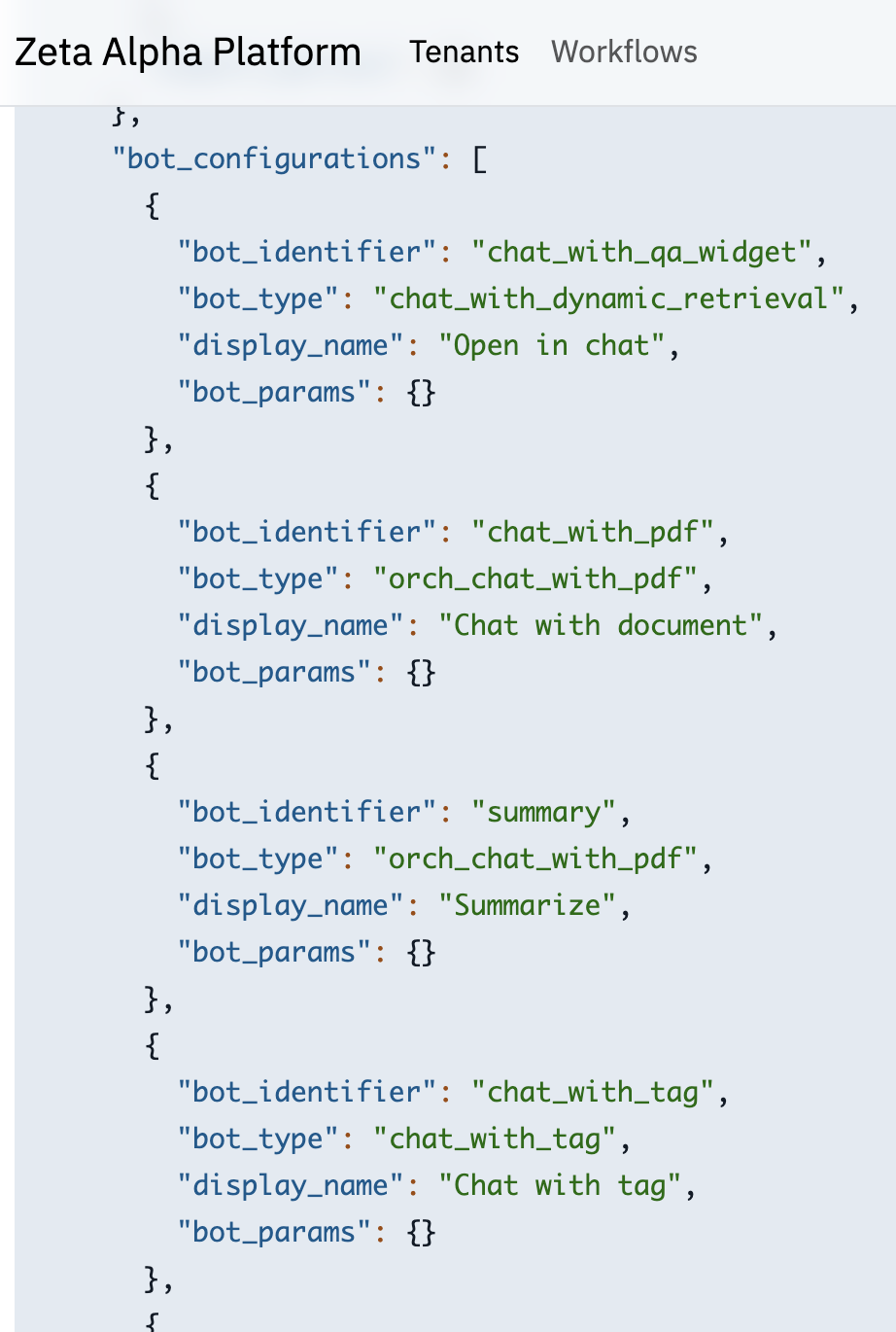
Each entry of client_settings.bot_configurations links a frontend component to a callable agent setup:
bot_identifier: identifies a frontend componentbot_type: identifies which agent setup to call; this should match abot_identifierfromchat_bot_setupsdisplay_name: The display name of the agent in the Zeta Alpha Navigator frontend.
The following bot_identifier values are currently supported by the Zeta Alpha Navigator components:
chat_with_qa_widget: QA Widget in the Discover pagechat_with_pdf: Chat component in the PDF Viewer pagechat_with_tag: Chat component in the Tags pagek_answer_table: Table QA Widget component in the main page
Chat page
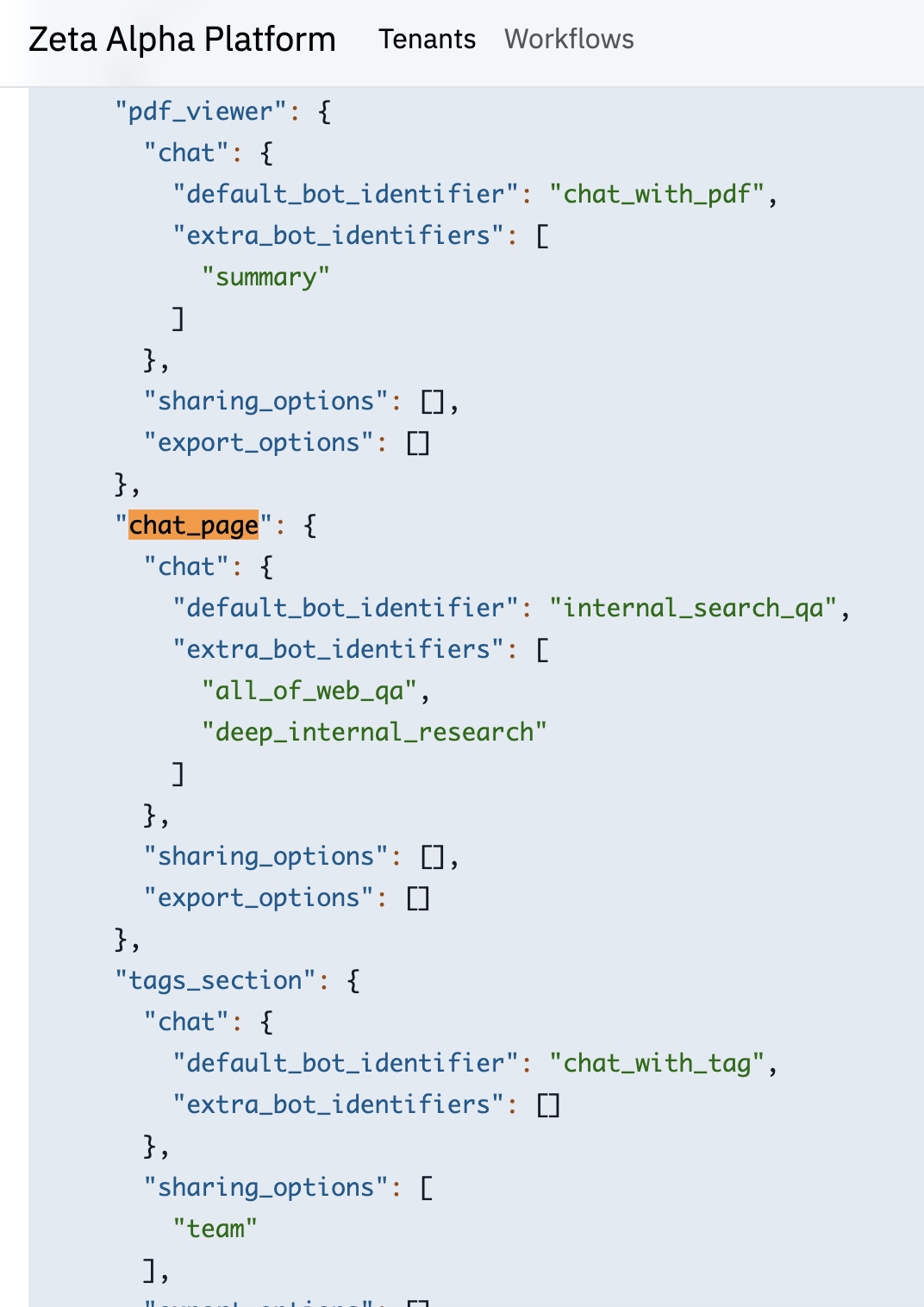
The Chat page of a tenant has a default agent as auto-selected and a list of pre-selected agents as options for each user of this tenant to select.
To configure the agents shown in the Chat page, for each agent, add a bot configuration object under the client_settings.bot_configurations as described above. Then in the widgets.chat_page.chat component of the tenant settings, set the default_bot_identifier and the list of extra_bot_identifiers with the bot identifiers you just configured inside the client_settings.bot_configurations as shown below:
Examples
- Use
my_rag_agentin the QA widget of the Discover page
If you have a chat_bot_setups entry with bot_identifier: "my_rag_agent", add the following inside the client_settings.bot_configurations list:
{
  "bot_identifier": "chat_with_qa_widget",
  "bot_type": "my_rag_agent",
  "display_name": "Helpful agent"
}
- Use
my_rag_agentas the default agent in the Chat page and usefoo_agentas an additional option for the user:
Assuming you have both my_rag_agent and my_quiz_agent configured in chat_bot_setups, add them, inside the client_settings.bot_configurations list:
{
  "bot_identifier": "rag_agent",
  "bot_type": "my_rag_agent",
  "display_name": "Helpful agent"
},
{
  "bot_identifier": "quiz_agent",
  "bot_type": "my_quiz_agent",
  "display_name": "Quiz agent"
}
and set them in the widgets.chat_page component:
"chat_page": {
  "chat": {
    "default_bot_identifier": "rag_agent",
    "extra_bot_identifiers": ["quiz_agent"]
  },
  "sharing_options": [],
  "export_options": []
},
Updated tenant settings may take up to 1 minute to be reflected in the Zeta Alpha Navigator.
Calling the agent through the Chat API
You can also call the agent through the Zeta Alpha Chat API or the Zeta Alpha Chat Streaming API.
Follow the instructions in the Getting Started with the Chat API tutorial to call the agent through the API.